


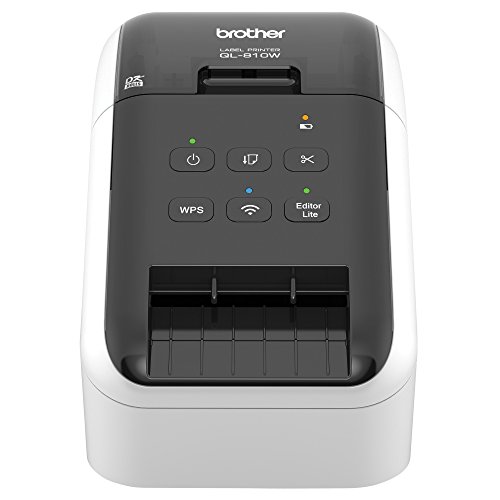
This was a rushed replacement for my old Brother Smart Label Printer 440, which died halfway through printing a shipping label. Partly for a mild case of brand loyalty and partly because of users' reviews in Amazon and elsewhere, I chose this, the middle of this line. The lower model was not wireless, and the higher model had wireless but it also had an added serial port which I stopped needing years ago when Apple switched to its own connection and eventually settled on USB.
This label printer made my stock of old label rolls obsolete, since the new printers require printed symbols on the backs of the tapes, particularly when using the very convenient continuous rolls of tape. I've been using only one of the two supplied sample rolls--the wide, continuous tape. This printer can be set to produce labels of any length, as long as the width of the label does not exceed the width of the paper tape. I'd think, since rolls of shipping label widths can come in 50-foot rolls, the length of the tape might only be limited by the printing software (which does not have to be Brother's proprietary software).
Tape rolls must be mounted in plastic holders which, depending on manufacturer, might be replaceable/reusable or permanently attached. Compared to the previous model I owned, however, tape replacement is quite straightforward.
The new feature I like is that this thermal printer can print on continuous labels that are clear, which I use for return address labels and shipping labels that don't need to be placed on printed envelopes with instructions to "Place Label Here" which would show through the clear label.
One annoyance, though, despite the overall excellence of the product, is that another electronics manufacturing company with loyalties to the "other operating system" has not expended the effort and resources to make this "plug and play" with Mac OS X and iOS. This is odd, since the Brother MFC (multi-function printer) we own was quick and easy to get running on our home WiFi network. Not that WiFi-ing this label printer was laborious...it was fairly uncomplicated, though instructions had to be followed, unlike many Mac-attached devices. My guess is that this is the result of software engineers who were trying to adapt software from "other" systems to the Mac. Still, I glanced through the instructions for WiFi-ing the printer using the "other" operating system, and I felt sympathy (and pity, a bit) for how much more complicated it was to be networked on non-Macs.
I like the printer very much for being highly technologically advanced compared to my old Brother label printer, but I didn't like how excitedly enthusiastic this printer is when finishing a label. After cutting it off, it does some projectile vomiting of the completed label causing it to fly (not drift) onto the floor or take wing like a glider. (It's still slightly curled from coming off a tight roll, so it's the perfect aerofoil.) Maybe they're planning a new accessory, such as an output bin shaped like a bird cage. The finished label does NOT sit like a tongue sticking out, as shown in the photo displaying the device. It's spit out.
I spent way too much time setting this up. Once it is done, I am quite happy with it. It would have gotten a 5 star if I didn't run into issue with printing the first label.
The printer comes with 2 sample rolls (2.4 in and 1.1 in). *** The 2.4 is a black/Red label, so make sure you have it set correctly or it is complain about incompatible label.
To ease some of pain I experienced, do the following:
Install all the software from the installer. (default)
Make sure you can print from the USB connection first using P-Touch Editor 5.2. The Lite that comes with printer is pretty useless, so you want press the LITE button to turn that off on the printer.
Once you have the USB printing working, you can set up the wireless using the Printer Setting Tool. It is pretty straight forward. Once set up, you should be able remove USB and print wireless.
For Mobile printer, install Brother Iprint&Label app. The templates available is adequate for address labels. I was able to print a photo from that as well, don't expect photo quality :)
I had the non-wireless, QL700, hooked to my system, and once set up, it worked flawlessly. When I added this printer (in order to be able to print labels in another room) after I loaded the drivers, I found that some of my saved label formats had shifted position, and were then getting text chopped off at the top. I went back into their files, made some modifications to their settings, re-saved the files, and now they work just as well as before. Did lose a batch of 75 before I caught it though. Oh well, tuition of the learning curve... In fairness to me, however, preliminarily, I DID call the company help line, and had a young fellow, (who's REAL name definitely wasn't "Wes," as stated, I am certain.) tell me that I should just install the new printer with the included disk, and that it would NOT change of delete any of my saved label files. By accident or design; he LIED.
So, the printer works even better than our old one, but be aware, that under the same circumstances, this change in your saved label settings might become an issue.
Superb, snappy piece of work.
Installation was a snap (I'm using this on Mavericks on an iMac) - I downloaded the drivers and the editor software from the Brother site and didn't use the bundled CD.
I like the ability to vary the label length (using the P-touch Editor), so I'm not restricted to the standard address size (when using a continuous roll, naturally). So, I can use it for addresses, or to print out instructions, or lists and so on. I've also embedded my logo using a jpg so when I send something to a customer using this, I get some brand reinforcement. Also nice is the ability to print vertically or horizontally and the auto-cut feature and because it's wireless I only have the power cord to deal with and not an additional USB. (BTW, I'm using this on a 220W power connection so it's plugged into a step-down converter that I bought at the same time off Amazon - no issues so far and it's been a month or so.)
The only (minor) fly in the ointment is the P-touch Editor on the Mac - it's not a bad piece of work, just idiosyncratic. You need to get used to its somewhat weird interface and the fact that you can't use Command-Shift-V to paste and match style, and selecting text to edit is not exactly user-friendly and... but these are relatively minor quibbles.
It works on my Mac wirelessly and it's fast and clean. Can't ask for much more.
Works well for what I need. Image is sharp and printing is quick from my phone.
Cons are that you need an laptop or pc to install the software and get it connected to your network. Experienced the typical pains of installing a network printer...long waits, errors, me cursing, etc. Also, the app has a bit of a learning curve to know the steps. You have to backtrack every time to change the print count. Ex - my previous job was 8 labels. My new job I only one, but didn't go back to change the settings, so I ended up w 7 copies I didn't need. You cannot stop a print job once you hit the button. Has some work to make it more user friendly.

Feature Product
- Easy connectivity - Print from virtually anywhere or share on a network
- Print amazing black/red labels using DK-2251
- Create cost-effective paper labels for packages, envelopes, file folders, Name badges, postage* and more
- Ultra-fast, up to 110 standard address labels per minute with black text at 300dpi.Create and Print labels from your mobile device when connected to a Wireless network
- Windows and Mac compatible.Mobile Device Compatibility:AirPrint, Brother iPrint&Label
Description
"
Create amazing black/Red labels using DK-2251 or cost-effective, paper labels for packages, envelopes, file folders, name badges, postage* and more. Wireless interface offers easy connectivity - print from virtually anywhere or share on a network. Ultra-fast, printing up to 110 standard address labels per minute with black text at 300dpi. Create and print labels from your mobile device when connected to a wireless network. Add an optional li-ion battery for a complete mobile solution. Easy to integrate with free software development kits (windows, iOS and Android). Convenient, Brother DK drop-in labeling supplies. No ink or toner needed. Windows and Mac compatible.
*Enrollment in the service necessary, internet connection, and postage label roll required. service compatible with windows only. Usb connection required.
"This device gave me conniption fits trying to make it function with a wireless connection. The so-called "User Guide" is useless, and the procedures given there do not match the device's functions. After a couple of hours fooling around, I now have the wireless aspect working just fine. The key was to use the utility on the DVD called "BRAdmin Light" instead of trying to follow the verbose tomfoolery in the User Guide. A minor surprise was that it managed to disconnect my Brother color laser printer. Re-installing the latter from its own DVD cured this. The accompanying P-touch Editor has been improved over the years and now is only slightly crazy. One annoyance...the device MUST BE turned on manually...it won't wake up when a file is sent to it for printing. It takes about 20 seconds to find the LAN/router.
I am a big, big fan of Brother products. You call for tech support and they pick up the phone in 3 rings and really work hard to resolve the issue. I have owned to previous versions of their label makers and this was my first wireless on. I currently have 5 printers on my wireless home network. Anyway, for some reason I could not get the driver to work correctly and with a quick call to tech support we were able to get this printer working flawlessly. The wireless aspect allows me to not have to clump all my printers in one area around my one PC. I would highly recommend this printer.
I use this printer for personal use at home. It was pretty straight forward setting up the printer and connecting it to my Wi-fi network. I did have to initially connect it to my computer using the included USB cable, but once untethered the wireless features work flawlessly. The labels are easy to load and no paper is wasted when loaded correctly. The printer is very fast and the print quality is excellent. The automatic cutter is fast, however, the label is ejected out with some “force”, so placing the printer to close to the edge of a desk or stand will have you picking the labels up off the floor. I like the P-touch programs that can be downloaded from Brother and used with the printer. Although I haven’t used it yet, I do like the feature of being able to print Red and Black print on supported labels.
I don’t like that I have to remove the labels when not using the printer and making sure to reinsert the protective sheet back in the printer when not in use. I wonder how many people have thrown the protective sheet away because they didn’t read the instruction sheets? Maybe Brother should print on the protective sheet not to discard or throw it away! Trying to determine which labels to use with the printer can be confusing since Brother has several label printers and the label rolls look alike. So far I have purchased a box of Brother address labels which work fine with the QL-810W. While this has nothing to do with the quality of the QL-810W printer, the iPrint&Label app for the iPad is pretty lame for printing address labels. I would give the printer five stars if I didn’t have to remove the labels and reinsert the protective sheet when not using the printer.
Great little unit! I've got this directly connected (USB) to my Mac, and I'm using the P-touch software from their website. I created a mailing label template, incorporating my company logo. The software appears to offer integration with the Mac OS X address book, but I haven't spent much time figuring out how to make that work yet. For now, I'm just printing individual mailing labels as needed, which is the main reason I purchased this printer.
Until now, I've been putting an envelope into my Epson Artisan multi-function printer any time I needed to mail something out. It was a minor hassle - doing so required replacing the paper in the tray with an envelope and then putting the paper back in the tray once I was done printing the envelope. With the label printer, I can now print ad-hoc labels w/o messing with my larger printer. Plus, I can use the labels on larger envelopes. Creating a label with an Avery template then swapping out the paper with address labels was an even bigger pain, especially for a one-off label. Having a stand-alone label printer has made the drudgery of admin/office work a little easier.
I've been considering one of these for a long time. Should have pulled the trigger a while ago, though there are more options on the market now. This version, the QL710W, is an AirPrint capable unit that will work with iOS devices. I don't know that I'll ever use in that mode, as all my paperwork processing happens at my desk, but it's nice to have the feature if I do choose to take advantage of it.
The only negative I can think of in these early days of use is the print quality. The printer will "blob" parts of images and text. Not enough to make the labels unusable, but clearly enough to notice. It's obvious the labels I'm printing come from a label printer.
I bought this label printer almost a year ago, and I FREAKING LOVE IT!! It does have it's shortcomings, i.e. monotone graphics, but you're not going to get a dream machine in this price range (I did buy this refurbished. I see no reason to pay for it new, based on my experience). I use my QL-710W several times a week, if not daily, and for a wide variety of applications. It's probably one of the most utilized devices in my home office, and I can't reiterate enough how much I value it and would buy it again.
0 comments:
Post a Comment