


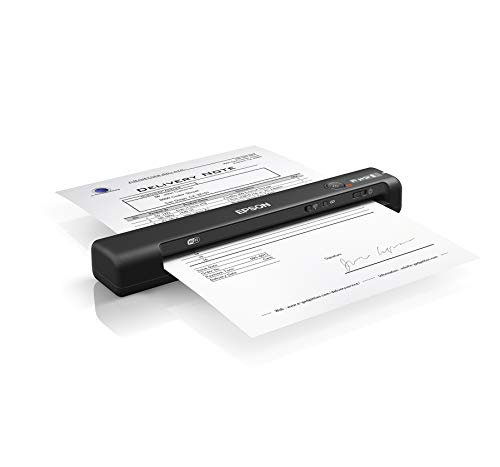
I am a bit perplexed. I REALLY like this portable scanner, but there are some features that make me question the design decisions that went behind them -- and the Computer and Mobile app versions work vastly different in a multitude of ways that confuse me to the point where I am finding some of the product descriptions misleading. My background is in Information Technology (IT), and I cannot imagine how the average consumer would not be scratching his or her head over some "missing" features touted in the product description, manual, and packaging.
NOTES
- When mentioning "Desktop", I am referring to Windows and Mac computers
- Epson's Desktop application is called "ScanSmart"
- "Mobile" would be iOS (iPhone/iPad) and Android (Samsung, etc)
- Epson's Mobile application is called "DocumentScan"
- "ScanSmart" and "DocumentScan" have vastly different features that make the marketing material and manual questionable
PROS
- Very portable (only 0.7 lb) and compact
- Battery powered and microUSB rechargeable (using your computer or USB power adapter of your phone/tablet)
- Relatively speedy scanning
- Professional looking design
- Scanning via WiFi (2 ways, more on that later) or wired USB
- Can scan multiple pages and combine into a single file, complete with rotation and deletion of individual pages
- Great scan quality
- Start/Stop button for scanning without needing an app
- Good, but not professional-grade color accuracy
- Excellent, Optical Character Recognition (OCR) via the Computer app (unavailable for Mobile) to convert scans into searchable text (PDF, Word, Excel)
- 600 dpi optical scan resolution (limited to 300 dpi with Mobile apps). Marketing states 1200 dpi max
- Scan to Cloud options (unavailable for Mobile), such as Dropbox and Google Drive (only Epson's own website as a footnote mentions that this is only available with the Desktop app)
- Small LCD giving battery status, WiFi mode, etc
- Scan to a folder on your Desktop or Android app (iOS doesn't have this available. It stores scans inside the app itself)
- Scan documents up to 8.5" wide and 72" long (wow!)
- Optional license available to scan receipts for text conversion into QuickBooks, Excel, etc. (Unavailable with Mobile app)
- Scan photo IDs and business cards
- Scan photos and sensitive documents that you don't want possibly damaged (with optional accessory)
- Reasonable price
- Scan previews within the Desktop and Mobile apps
- Automatic document feeder
- Sample calibration and maintenance sheets included
- Simple WiFi connection configuration (via WPS, mobile app, or manually providing the WiFi settings)
- Slot to secure your scanner to an object to discourage theft
- Configurable power saving options
- Multiple users can wirelessly use the scanner
CONS
- Marketing material and manual allude to features that are not available with the Mobile versions of the Epson scanning software. This can be quite misleading as the limitations are not described anywhere (Amazon and Epson's website, Product manual). More on that later.
- Mobile app versions are severely crippled as follows:
--- Scan resolution limited to 300 dpi
--- OCR (scan to searchable text) not available (only Epson's own website mentions this as a footnote)
--- Scan to Cloud not available (although your mobile device may have that feature already built in)
- Full manual is only available through the website (this could be considered a good thing too. Saves trees)
- An optional accessory is highly recommended (but not included) to scan photos and sensitive documents you don't want to possibly get damaged
- Mobile app version only allows you to connect to the scanner either directly via WiFi OR indirectly via your WiFi network. You cannot have both profiles saved in the app. You have to choose one or the other, and this can be confusing for the average consumer
- No memory card support to scan directly into a storage card instead of a computer or mobile device
- No automatic document feeder (each page must be manually loaded by you)
SUMMARY
Overall, I really like this portable scanner. It is fast, well-made, and very convenient while on the road. However, I am quite upset that the product description, marketing material, product box, and manual do not mention any of the limitations that the Mobile apps have over the Desktop versions. This falls directly into false advertising, a big oversight on Epson's part. This could easily have knocked the product from 5 stars down to 3, but as it is the smallest, lightest, and fastest scanner available for the price point at the time of this writing, I am giving it 4 stars for good effort since marketing material can be easily corrected.
TIPS
- GREAT, protective case is available on Amazon. Search for "Caseling Hard Case ES-60W"
- Advantages of the ES-60W model over the cheaper ES-50: faster scanning, wireless scanning, automatic switching between wired USB and WiFi scanning, LCD status screen
- You can connect to the scanner wirelessly either via a direct connection or over the WiFi network as follows:
--- Direct Connection: flip the WiFI switch on the scanner to the right to turn on wireless mode. Look for the "DIRECT-70-EPSON-..." WiFi name and connect to it. The exact name and password are printed at the bottom of the device. In this mode, you do not need to have a WiFi router available. You simply connect your phone/tablet/computer directly to the scanner
--- WiFi Network Connection: you can have the scanner join your WiFi network by using the Mobile or Desktop app and following its directions to provide your WiFi's name and password. Your app will then find the scanner automatically once the device connects successfully to your network
- Desktop application (Epson ScanSmart) and driver (which tells the computer how to talk to the scanner) can be downloaded from the Epson website. A CD is not included in the package
- Mobile application for iOS and Android is called, "Epson DocumentScan"
- Feed your document face-up and lined up to the left edge. Envelopes and business cards must be oriented a specific way (refer to the manual for illustrations)
- Irregular-sized documents should be using an optional accessory that Epson sells. Or, tape it to a full sheet of paper
- Move the WiFi switch to the right to turn on WiFi mode
- Desktop app has a vastly higher number of options and features available, such as: scan resolution up to 1200 dpi, historical scan statistics, Document skew correction, Contrast/Brightness/Gamma, Firmware updates (which often contain fixes/enhancements to the device itself)
- To scan your documents and make their text searchable as a PDF, Word, or Excel file, you will need to download the additional "Epson Scan OCR Component" software using the "Epson Software Update" program on your computer. Note that OCR (Optical Character Recognition) is not available in the Mobile apps. Be sure to SELECT "Searchable PDF" as the Save option. By default, it will save the scan as "PDF", which is not searchable
I hope these TIPS and NOTES are helpful. If you liked the review and found it helpful, please click the "Helpful" button below to encourage me to write more. Thank you!
I do a fair amount of document and receipt scanning at home with a Fujitsu ix-100 portable document scanner that I like very much, but I also own both desktop and portable Epson scanners that are good scanners. I ordered this Epson Workforce ES-60W portable scanner to see how it compares with the similarly featured Fujitsu ix-100 portable scanner.
This Epson scanner arrives boxed with a connecting cable, cleaning sheet (it looks like a small piece of tissue paper but don’t throw it away), a paper alignment guide, and a printed initial start up guide. There is no software disc included. Instead, Epson provides links for you to download the product software from their web site, which includes OCR and networking software along with a comprehensive owners manual in pdf format. The software needs to be installed before initially connecting the scanner, and I found a firmware update among the optional software downloads that I installed also. The scanner itself is quite small and thin, significantly smaller and lighter weight than my Fujitsu portable scanner. It is powered by either the USB connection or the internal USB-rechargeable battery and does not require an AC adapter.
When I initially tried to install the software I could not it to recognize the scanner. The indicator light would flash when I turned it on and then shut off after several seconds. After multiple attempts and computer restarts I discovered the USB cable was not completely attached to the scanner. At the scanner end, the USB connection is recessed, very snug and a little awkward to access, and the cable end has to be pushed in firmly until it snaps into place. After I figured that out everything installed easily. The battery has to be fully charged to set up the scanner for wireless scanning. I plugged it into a USB-AC adapter and let it charge for an hour or two to get it fully charged. There Is an indicator light on the top of the scanner that displays battery status when the scanner is turned on. The scanner has a switch to turn it on but no switch to turn it off. You can set a time in the configuration settings for how long the scanner will remain on before automatically shutting itself off. The wireless scanning feature is also turned on with a switch, but it is an on/off switch, and the scanner will automatically turn itself off when you turn the wireless switch back off.
After installing the software I did some test scans both with the connecting cable and wirelessly. The scanner is indeed fast, although I found it difficult to get the scans perfectly straight, and the skew correction did not seem to work very well to correct this. Unlike my Fujitsu scanner, you cannot adjust the scan configuration settings until after you have done a scan. Once you scan a document you can adjust a variety of settings including a wide range of scan resolution, naming options, file location, etc. and save them as a configuration profile. Unfortunately, the settings don’t take effect until your next scan, so you end up scanning a document twice if you need to make changes. Like my Fujitsu scanner, this Epson scanner does not perform two-sided scanning, so any document with information on both sides will require two separate scans, although they can be saved in the same pdf file. There are options to save scans as a pdf file, send it in an email, send it to Microsoft Word or to multiple other programs. Scanning with the cable or wirelessly worked equally well.
Epson also has an app you can download for free (Epson DocumentScan) for either Android or iOS that enables you to scan wirelessly into your cellphone or tablet. I have an iPad, so I downloaded and installed the app from the App Store. It was pretty easy to configure for use with my iPad, and there are several different methods described in the app to do this. The app is better than the Windows software in that it enables you to configure your scan before you scan the document (why Epson didn’t do this with the Windows software makes no sense to me). The downside, though, is you can only save your scanned document to a file folder within the app. You then have to open the document in order to forward it elsewhere. Also, there does not appear to be any way to correct document skew with the scan, although you can rotate it 90 degrees at a time. But with the app I was able to successfully wirelessly scan documents into my iPad.
Overall, I like this Epson Workforce ES-60W scanner. It is very versatile and allows you to scan single sheet documents very easily and quickly via either USB or wirelessly. The included software is significantly improved over software Epson provided for an older DS320 scanner I own, although there still seems to be some room for improvement, especially in document skew correction and efficiency in document scan configuration settings. But its small size and light weight make it a very handy scanner for anyone needing portability, and it would take up very little space in a briefcase. It compares very well with the Fujitsu ix-100 portable scanner that offers similar features, and right now the Epson scanner sells for about $30 less than the Fujitsu on Amazon.
I try to write informative product reviews. If you have found my review to be useful, please let me know by clicking on the “Helpful” link.
I didn't need to contact tech support so I didn't rate it, but what a cool scanner this is. I hooked it up to my home computer, my laptop (both Windows 10), and then loaded the software on my iPhoneX from the AppStore. It was easy to install once I figured out what Epson was trying to say in their directions. It scans fast and the quality is good, not great. I have not tried photos yet, only documents. Super happy with this little guy. Traveling with it is going to be great. It's little and light. I bought the Caseling case to go with it. I've only scanned a few things so I don't know what kind of workhorse it will be, but I plan to put it to good use in a few weeks.
Pros:
1. Compact to easily carry with you
2. Fast scanning - zips thru pages
3. WiFi option comes handy to use with Phone
Cons:
1. For a Document Scanner does a really bad job scanning white text blocks on a darker grey background. Does well on black though - May be that's just the driver setting?
2. Limited features in the mobile app
3. Limited "Image Processing" options after the document is scanned
I got this because I was excited to have a wireless scanner I could use with my Macbook Air. I end up using it with a cable most of the time because the wireless connection does not work. All of the drivers are downloaded online from the Epson webpage and the set up was east to do. The scanner works great for full page documents which is all I use it for

Feature Product
- Fastest, smallest and lightest wireless mobile single-sheet-fed document scanner in its class (1) _ ideal for easy, on-the-go scanning.
- Groundbreaking speed _ scans a single page in as fast as 4 seconds (2).
- Wirelessly scan critical documents _ scan to a PC, Mac, iOS or Android device (3).
- Smart tools to easily scan and organize documents _ Epson ScanSmart Software (3) makes it easy to scan, review and save.
- Automatically detects connectivity _ switches between USB and battery-powered wireless without any user intervention; LCD displays wireless and battery status.
Description
The fastest, smallest and lightest wireless mobile single-sheet-fed document scanner in its class (1). The WorkForce ES-60W is designed for professionals with busy lives and features wireless scanning and groundbreaking speeds ― scanning a single page in as fast as 4 seconds (2). Wirelessly scan documents to a PC, Mac, iOS or Android device (3). The scanner features Nuance OCR to create searchable PDFs and editable Word and Excel files, plus Epson ScanSmart Software (3) to easily scan, review and save. USB or battery-powered, the scanner automatically detects whether it’s in wireless or USB mode. No intervention is required. And, a convenient LCD displays the wireless status, as well as battery level.
1. As compared to competitive personal mobile single-sheet-feeding document scanners priced under $229 USD in the U.S. and Canada, as of May 2018. Excludes other Epson scanners.
2. At 300 dpi, based on 8.5" x 11", 1-sheet scan speed, using the battery.
3. Wirelessly scan to smartphones or tablets (Android/iOS devices) via the Epson DocumentScan App; wirelessly scan to the cloud, PCs or Mac with Epson ScanSmart software installed on the connected Windows PC or Mac. Internet connection is required. Epson ScanSmart supports Windows 10 (32-bit, 64-bit), Windows 8/8.1 (32-bit, 64-bit), Windows 7 (32-bit, 64-bit) SP1 and Mac OS X 10.11.x to macOS 10.14.x.
4. With Epson ScanSmart Software installed on the connected Windows PC or Mac. Internet connection required. Supports Windows 10 (32-bit, 64-bit), Windows 8/8.1 (32-bit, 64-bit), Windows 7 (32-bit, 64-bit) SP1 and Mac OS X 10.11.x to macOS 10.14.x.
I've used this for over a month, and love it. Scanners of the past were troublesome with feed jams and misaligned images...this doesn't do that. It's the size of two tubes of toothpaste, is cable free, and puts paper forms into my computer (or phone!) quickly and easily.
Works great and I love it, but the downside is that the battery runs out too soon... Doesn't last very long
It works great.
This Epson ES 60W scanner will be the 3rd Epson scanner in my household. I have a large desktop, multi-function Epson V600" bed scanner", which I use for high res scanning of photos etc. And a few months ago I got the Epson ES 50, which is pretty much identical to this ES 60 with a few exceptions. I love both of these very compact sheet fed scanners. The difference between the ES 50 and the ES 60W is that the ES 50 can't scan wirelessly and must be USB wired to your computer to operate. Whereas the ES 60W it does not have to be plugged into your device, although upon setup it does have to be USB fully charged and connected with the provided USB cable, in order to download the drivers and utilities.
With both of these scanners, the thing that I was most interested in was being able to save printed pages from things like magazine articles or trade publications, where I tear out (pages) from an article of interest, containing helpful information about a particular subject or a "how to" tutorial in woodworking or remodeling. After scanning such a page, I am able to save it as a PDF file or an editable Word document. I create instructional Word documents, for personal use, by extracting necessary information from a variety of sources and inserting/integrating them into a Word document along with explanatory pictures, for future reference, which has come in particularly handy for any information that is in "text printed" format. And I keep pretty extensive file folders, categorized by subject matter.
After I started using the ES 50, my wife, who is a psychotherapist expressed an interest in having one as well, to use between her office and our home, so when the ES 60W popped into my Amazon Vine queue of products available for test in return for review, I jumped on it. She sees many clients/patients every week and legally has to keep a lot of documentation on them, some of which is handwritten notes from her therapy sessions. She will now be able to scan and save her treatment plans with hand written notes, onto her computer, to be saved as searchable PDF's in easily locatable file folders, personalized for each patient and filed under their names. She is really tired of plodding through hundreds of paper file folders, locating what she needs. Now it will be quickly "file name" searchable for her. The ES 60W has saved her a lot of time in transferring documents onto her Mac Desktop at home, which can also interface and sync with her iPad, which she carries with her at all times to be used in both environments. She loves the scanner. Score one for Epson.
The primary differences between these two Epson scanners is that the ES-60W can scan a bit faster and can function totally wirelessly. And it can be used under its own power, with its rechargeable battery without wires or with its USB cable tethered to a PC, iPad, or laptop. And there is a built in small LCD screen, which lets you know visually with icons, whether and when it is connected to your wifi or your mobile device, and also gives you a battery level indicator. I did find that the rechargeable battery life was not as good as expected so we keep it USB charged when using it if it is convenient. Not too many times we would be away from power long enough for concern, but on a long drive, it might be an issue if you were an agent out in the field, capturing data for future use.
On both of these scanners, please note that the OCR (Optical Character Reader) will not be able to read, recognize, or convert handwritten notes on a document, to be displayed along with the printed text. In order to save anything in its original format which might include legible handwritten entries, it must be saved as a PDF or Searchable PDF (both are available to use from Epson Site software downloads). So you do need to download the drivers from Epson's website (including the Epson Scan OCR Component of the program). If you save anything in Word which has handwritten characters, you will get a jumble of weird symbols and characters in place of the handwritten stuff.
When you scan a document, a task screen will pop up, giving you options as to how and where you want to save the scanned document. In the first screen it gives you the option to rotate the document, or delete it among other options. When you click on "NEXT", it takes you to a selection of blue "action" boxes, for saving your scan. Epson has really covered the bases here, for cross platform function and integration allowing you to save to a variety of online storage sights such as Dropbox, etc in the "Cloud". And when you click on the first blue box called "SAVE", it takes you to the next "save" screen where you find the options to save it as a PDF, Tiff, Bitmap, JPEG, or Searchable PDF, accessible through drop down box selections. You are also given the option to browse your computer's file folders to determine where you want to save the scan. When you click on "Browse", it opens up your PC's "Microsoft Explorer" File Folders hierarchy, for your desired save location.
I found that the quality of the scan is pretty true to the original source. Although when you print inkjet printer images such as photos contained within a magazine article or document, you will not get true color accuracy or saturation, which is inherent in any inkjet printer printing on regular copy paper. To get a somewhat decent print copy of a scanned photo, requires using gloss photo paper and the highest settings on your printer (contingent upon the quality of your printer). But for basic retention of images within a document, this scanner is really great. What I see on my PC screen is extremely accurate and almost identical to what the original document looks like. Only when you go to print the same, does the printer end up being the weak link in recreating a "color brilliant" copy of the scanned document.
One thing of note, is that if you are saving scanned documents of any kind, to be incorporated into a Powerpoint presentation, this scanner can "save" to Powerpoint with the original documents brightness, color, and resolution intact. I love all of the above versatility in its save capabilities.
I found the setup of the scanner to be very intuitive and simple. You first must charge it to its full battery capacity before downloading the Epson software, by connecting it to your computer with the provided USB cord, which I did, until the "constant on" white charge light changed to a soft pulsing of off and on (which is the signal that it is fully charged and ready). Then simply goes to the Epson site indicated in the setup instructions, to download the software and you will be up and running in no time.
I deducted one star for the reason that for no apparent reason, often, when I activate the ES 60W to scan something, the first Epson dialogue print box pops up but does not give the subsequent "option" boxes for saving to the cloud or Powerpoint etc. It automatically saves it to my Documents Folder, devoid of some of the other options it is capable of. I have researched online and can't figure out the reason it doesn't present in the same way it did upon initial download and use. Fickle to say the least. You can still can and save to your computer without a problem but the other options seem to go away. I will have to call Epson support to figure that out. Epson's support site indicates the following:
Your Epson ES-60W includes free technical support for the life of your product. Our Epson Support Team would be happy to help and can be reached at (562) 276-4382; Hours: Monday – Friday, 6am – 8pm PT; Saturday, 7am – 4pm PT.
I scanned about 90 pages before the battery died (starting with an almost full charge). The software is intuitive and opens upon pressing the scan button. I wish it had editing capabilities (i.e. cropping), but it shows the preview of the item being scanned, gives you a choice of file type and location, and allows multi-page documents. I had a few pages that had black around the edges if they got knocked a little crooked, but for the most part scanning was easy and pages stayed straight. I wasn’t able to scan oddly-shaped pieces like my son’s school artwork, because the paper needs to be aligned with the left side of the scanner or it won’t register – for that reason, anything with an odd-shaped bottom didn’t completely scan but that’s not why most people would use this scanner so it’s no big deal. I tried increasing the quality for scanned photos, but got an error message and couldn’t scan until I changed the quality back to 200dpi, so skipping photos for now too. The scanner is very small and portable, works on rechargeable battery or USB cord, and is much quicker than my all-in-one printer/scanner/copier.
0 comments:
Post a Comment