


I have been looking at the new 34" widescreen class of monitors for about 6 months. I was initially excited about the LG, but after reading many complaints about its light bleed and other quality issues, I decided to wait. For reference, I am using this as a home office monitor hooked up to a recent MacBook Pro 15" via Thunderbolt -> Displayport running at full resolution at 60hz.
Appearance: Winner Dell
Both monitors are nice looking. Dell has a flatter, simpler bezel that disappears on the sides when the monitor is off. The Samsung bezel is more pronounced, though still nice looking. I consider this a marginal win for Dell and highly subjective at that.
Ports: Winner Samsung
While Dell has a greater variety of ports, including two upstream USB3, MHL (which I have no idea what to use with), and miniDP in, in addition to regular DP, and HDMI, I really appreciated the Samsung's two HDMI inputs. This allowed me to run two different HDMI sources in for the PBP/PIP function, namely an Amazon Firestick and a DirecTV box. I also prefer the port arrangement of the Samsung, which has every port on the back and facing out and away from the back. The ports are substantially easier to get at and they work better with a monitor arm (or any cable management device) because they tend to point out and away from the monitor and towards their source rather than down, which requires a sharp turn to stay out of line of sight. The sharp turn of the chords on my monitor arm for the Dell arrangement (down facing ports) actually puts enough pressure on the arm joint that I had to adjust it to avoid inadvertent swivel. And even though the Dell ports are well labeled, it still hard to get stupid non-reversible plugs in without being underneath the monitor.
PIP/PBP: Winner Samsung
Both the Dell and the Samsung have similar PBP/PIP options in general. The Dell offers a neat feature wherein you can tie different upstream USB inputs (two are provided) to different inputs (e.g. to control different computers peripherals). However, the Samsung is more functional in a variety of ways. For the Samsung, you can characterize each input so that the resolution is a better match for the source, e.g. you can characterize the HDMI input as an AV source rather than PC, and get a better formed 1080P picture. The Samsung also has much better sound options for the PIP windows. A critical flaw in the Dell is that while you can set the sound source to either the "main" window or the "sub" (i.e. PBP or PIP), there is no way to tell the monitor to default to one or the other when turning on the PBP/PIP window. What this means is that if you use the PBP/PIP for TV, every time you turn it on, you then have to go deep into the menu structure to turn sound back on. This is very annoying for a feature I want to otherwise use frequently. My recollection is that the Samsung allowed me to set this up such that any time the PBP/PIP window was on, it had sound priority.
Menu Structure and Control: Winner Dell
The Samsung uses a joystick on the back that you have to "click" in to make selections on, while the Dell has four buttons on the front that are some sort of capacitive sensor activated or the like. A nice feature of the Dell is that you can set two of the four soft-touch buttons as shortcuts to frequently used features, such as sound level, PIP/PBP, input source, etc. Unfortunately, you cannot set one to a shortcut to sound source, which would at least mitigate the problem discussed above. Overall, while I find neither totally awesome to use (and there is no Dell monitor software for Mac), I preferred the buttons on the front of the Dell to the joystick on the back of the Samsung. The Dell arrangement works better on my monitor arm because with the Samsung I would always upset the arrangement of my monitor on the arm while fiddling with it, not to mention that it was harder to reach on the Samsung.
The menu structures of each are fine, though I find the Dell to be slightly simpler and more straight forward, though the Samsung has a greater variety of features, in particular AV related features.
Stand: Tie
Both the Samsung and the Dell come with decent stands. As mentioned above, I use a monitor arm that was able to hold each easily with a VESA 100x100 attachment.
Sound: Winner Dell
Both the Samsung and the Dell have adequate sound. The Dell has slightly more powerful speakers (2 x 9W) versus Samsung (2 x 7W). I think the Dell sounded slightly better in a TV and music test, but this is highly subjective.
Viewing Angle: Winner Dell
I had read that the VA panel on the Samsung would probably have worse viewing angle as compared to the IPS panel on the Dell, but I did not expect it to be as severe a difference as it was. With the Samsung, especially with a test pattern, you could see major color shift even just from one side to the other without changing view position. When changing view position, it was much more pronounced. When looking at one test pattern, whitish grey lettering became noticeably tinged with pinkish purple towards the edges. And when viewing any sort of picture, tv, etc., the Samsung was much more sensitive to viewing position changes. While the Dell also suffers from a bit of change when changing position, it was much better from a fixed position looking from edge to edge and also held its color uniformity much better when changing viewing position.
Colors: Tie ... once calibrated
I think both monitors can produce great colors. However, the Samsung does not come calibrated from the factory and the original settings looked pretty terrible. Luckily I had read about that before I bought it so that I did not immediately package it up and send it back. I do not have professional calibration equipment, so my calibration was based on reviews I have found online and my own preference, but I think both perform really nicely. A really nice thing about the Dell is that it comes with a calibration report from the factory and comes out of the box in very good shape. There are still adjustments to be made based on taste (particularly with respect to brightness), but I think both can achieve similar performance.
Black Level and Light Bleed: Winner Samsung
VA panels have an advantage over IPS panels (read: IPS glow) in terms of black levels, and this was apparent. The black level on the Samsung was significantly better than that on the Dell when calibrated for similar brightnesses. With that said, it does seem like the Samsung exhibits a bit more "black crush" in dark scenes.
As for light bleed, the Samsung blows away the Dell. There is almost no discernible light bleed on the Samsung while the Dell definitely has the tell-tale corner bleed. It appears to be better than the LG, and it is not so bad as to make dark scenes unenjoyable, but when looking at a flat black background, the Samsung is far better.
Text Clarity and Sharpness: Winner Dell
You may have noticed that I liked a lot about the Samsung and thought it better than the Dell in many ways, but this was an absolute deal killer for me. I could not, no matter how much tweaking I did, get the Samsung to have crisp text. It was either not sharp enough, such that the text appeared fuzzy on the edges, or it was too sharp and looked to have the artificial white halo--particularly on smaller text. I think this may have something to do with the fact that the pixels on the Samsung are in an elongated orientation, whereas the Dell is more typical squarish orientation. As I mentioned before, the Dell came out of the box just right, while the Samsung took lots of tweaking, and I still couldn't get it right. Ultimately, the text clarity bothered me so much on the Samsung that I ordered the Dell, and now I have the Dell and the Samsung is on its way back. I suppose there is some possibility that it is my Mac that is a part of the issue, but I have a hard time believing that given my Mac has looked great on many other screens.
Overall Winner: Dell
Though I really liked the functionality, port arrangement, and black level of the Samsung, ultimately the text clarity and much better viewing angles of the Dell won me over. I hope that Dell will consider giving me a better sound control option, but I doubt it. I will just have to live with it until a reasonable 34" 4K monitor comes around!
Here is a link to a flickr gallery with pictures: [...]. I have also attached the photos here.
Reading the reviews on Amazon and other places with regards to this, and other IPS panel monitors really gets you nervous. Its like a crap shoot as to whether you will get one with horrible backlight bleed or other issues. I wanted a large, ultrawide 1440p monitor for both business and gaming, but did not want to shell out $1,200 clams for a 1440p, 144Hz G-Sync IPS panel. So For a little over $600, and based on most of the reviews, this one looked like a good compromise.
Love the way everything is packaged in the Dell box, well laid out and the screen is well protected. All the cables you could need are included (albeit a bit short). Loved the way the screen was so easy to attach to the base with no tools. Fired this baby up using a Display port to Display port cable (not the one that came in the box) and...nothing. Please note that DSP 1.2 is disabled by default in this monitor. So if your computer's GPU has DSP 1.2, you need to enable that in the monitor's on screen menus. I found that out after I switched to the Dell supplied Display port to miniDisplay port cable (which works out of the box). One minor complaint is that you have to stand on your head and have real good eyesight to get the cables all connected to the back of the monitor. But to be fair, all monitors these days seem to be like this.
Anyway, either I got lucky, or this is a very very nice monitor. I do use this monitor is a fairly well lit room. But I noticed virtually NO backlight bleed on my monitor. I turned the lights down and started playing the movie, Alien, which has a lot of dark scenes, and barely, and I mean barely, could see slight light from the corners. Not enough at all to be distracting. And I will never notice it in my normal usage (which is not watching movies in the dark on a computer screen. I put up several solid color screens (from white all the way to red and navy blue) to check for evenness, and noticed no banding, blotchiness or other faults. No stuck pixels. The color calibration out of the box looks superb. The monitor comes pre-calibrated. I initially turned down the brightness a slight bit, but made no further adjustments. One issue I did have with the Dell Display software is figuring out how to add pre-sets for software. The dell comes with pre-sets (standard, multi-media, movie, game, and so forth with different brightness, contrast, etc.) for popular software based on type of application. It says to add a software program to the list to drag the application to the list. I don't know if I am dense, but I could not get that to work at all. Minor annoyance, not worth knocking down the rating.
Anyway, I love this monitor so much. The colors are so rich with the ISP panel and the images are so sharp (1440p). Text even without zooming is small but very clear. It is so great to be able to open up three browser tabs and line them all up side by side, or have three business applications or windows open at once and be able to read them all very clearly. Like I said earlier, movies pop and there is a depth to them that I never have seen on my 1080p plasma TV. Gaming, especially using 3440x1440 is so awesome. I play a golf game regularly on steam. I was completely awestruck playing this game using the ultra wide screen. Note not all games support this 3440x1440 resolution, but newer games likely will. for super competitive FPS gamers, especially depending on your graphics card, you may be limited by the monitor's 60Hz refresh rate or the 5mps response time and the fact that there is no G-Sync/FreeSync. While there are some folks online claiming you can overclock this monitor to 80Hz, don't bother. While it will display at 80Hz, you will get dropped frames. This monitor was intended for 60Hz maximum refresh rate. But at $600-$700, only the most hardcore gamers will be disappointed. For the other 90% of gamers, 60Hz is plenty as long as you have a decent GPU. I am not a competitive online FPS gamer, so I am perfectly happy. And with a 5mps refresh rate, I certainly cannot detect any lag using my PS4 controller connected to the PC via Bluetooth.
The curve is something that I was leery of, but now that I have it, there is no way I want to use flat screens any more. Heck there is no way that I want to use any monitor that is not an ultra-wide any more.
In closing, I would say that if you have a decent computer CPU/GPU, and are not a super hardcore FPS gamer, and just want a stunning, immersive display for business, normal gaming, and even for movie watching, for $600-$700 you will feel like you made a smart buy, and saved $300-$600 over those "bleeding edge" ultrawides at the same time.
So for business apps, A+, movies, A+, games B+
As an engineer using AutoCad, I've always used the U3011. That 30" 16:10 aspect that was better than anything out there. Until I used this. The wide aspect is almost overwhelming, leaving so much space for multiple apps/windows. I am so much more productive while working. BUT WAIT: Gaming is insane on this. Though not technically a 4k monitor it lies somewhere in between and if positioned at the right distance from the user changes the user experience completely. Watching movies on this (at the desktop) is so much more satisfying, THOUGHTS: Curved monitors such as this naturally can have light bleed at some edges. Here is what I have found. Massage those areas, yeah... massage gently with a cloth towel or glove and you will notice the light bleed reduce. You may have to repeat this every now and then, but it really has never been an issue with me. Thank you Dell for another great product.
This monitor is powered by an EVGA Nvidia 980ti. No noticeable bleed through of light. Out of the box, colors dead on as measured by my E-Rite ColorMunki (and predicted by the enclosed Dell factory claibration). I moved to this from an excellent Samsung 24" 1080 display. Text is crystal clear and easily read without my glasses, though I routinely kick Word up to 150% when writing for prolonged periods, mostly out of habit; even when I don't text is very clear. It is great to have multiple pages open and readable at the same time, or my web browser open to one side while I'm writing a story in front of me with an outline on the other side. I have viewed movies and they seem excellent, but I haven't done this a lot. Color correctness and definition might make this attractive to professional imagery people but you will want to see your work on the curved screen. In my amateur photo work, I have not had an issue with viewing pictures or working on them on a very slightly curved screen, but you pros should take a look before buying. In gaming, I've played Pillars of Eternity, Skyrim, Mordor, GuildWars2, Witcher3, and many others (MechWarrior4: Mercenaries, can you believe?) - no screen aberrations (tearing, etc.) even when settings are maxed out. At 60 Hz, probably not something to be used by a pro CS:GO competitor but I've been delighted with the wide view and details. I'm not sure the 34" or curve contribute to the immersion but I feel safe in saying they certainly don't hurt. It is delightful to find myself turning my head to see something to one side. I use an Asus sound card powering an excellent Logitech 5.1 sound system, so I have basically ignored the internal speakers and can't really speak to them. It is heavy at 18 pounds, so get straight with mounting on its very stable stand and its "landing zone" before you begin - another pair of hands is not necessary but would not hurt. Dell provides excellent directions for unboxing and mounting the screen and stand, so I suggest following them. Build quality? This is Dell at its best.
The first thing I did before start using it, was to connect the USB cable and get execute the firmware update software from DELL. I use the windows 10 snap feature to divide the screen, but Dell has a very light software to control the monitor's configurations and split the screen in several options. I have two 24” inches at job with a docking station. I was in doubt if I should buy one large or two screens and a docking station to my home. After trying a 32” inches from Samsung and returning it. I figured out that anything above 32” inches with better resolution would do the job. Then I choose this wider screen with a better resolution, and no regrets. The large screen with the windows 10 snap feature, is all I need. The monitor also have the feature to connect another Dell computer to it and extend to two screens mode, it has the PIP feature to divide the screen with another computer, game, tv (like fire stick), etc.

Feature Product
- Compliant Standards: Plug and Play, RoHS, TCO Displays. Input Connectors: 1 DP 1.2 (HDCP 1.4) / 1 mDP 1.2 (HDCP 1.4) / 1 DP 1.2 (out) with MST (HDCP 1.4) / 1 HDMI 1.4 (MHL 2.0) / 1 HDMI 2.0 (HDCP 1.4) / 4 USB 3.0 downstream ports with 1 x BC1.2 charging capability at 2A (max) / 2 USB 3.0 upstream ports
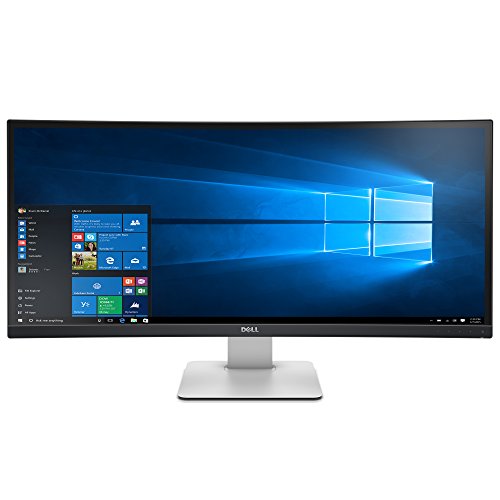
- Discover one of the world's first 34 inch 21:9 curved monitors with a panoramic view, cinematic WQHD resolution and superb sound. Ultra-wide curved screen that offers more display area and enhanced viewing comfort
- Unrivaled usability: Navigate across multiple applications and video inputs with Picture by Picture and Picture in Picture features
- 3-year Limited Hardware Warranty and 3-year Advanced Exchange Service and the Firmware Update Utility Software; Compatible with Windows 7
- 1 HDMI(vr2.0) connector; USB 3.0 Hi-Speed Hub (with 2 USB upstream port and 4 USB downstream ports); Speakers (9W x 2= 18W). Increase brightness & contrast controls via OSD
- Dimensions with stand (LxWxH) : 32.47 x 8.5 x 20.62 inches Dimensions without stand (LxWxH) : 32.47 x 3.00 x 14.65 inches
- Brightness- 300 cd/m². Response Time - 5 ms (gray-to-gray)
Description
Step in and be immersed by a revolutionary audio and visual experience. One of the world's first 34" ultra-wide curved monitors, the Dell Ultra Sharp. 34 Curved Monitor - U3415W virtually surrounds you with thrilling sights and sounds. Experience a view like never before, with the U3415W 34" curved monitor from Dell. Screen Coating - Anti-glare, 3H Hard Coating
I've had this monitor for nearly a year now, and it's still awesome. The screen real estate is nice with a pretty perfect scaling at it's 3440x1440 in 34". The stand is amazing and made me realize how much I was missing out with the stands on previous computers I had used - you really can get a perfect viewing position with the default stand. Though, even with the great included stand, if you needed a different mounting solution, the VESA compatible mount on the back is great to have. The USB hub on it is also great to have, surprisingly enough. I didn't really see the need for it before I used it, but I now have all my main peripherals (mouse, keyboard, audio interface) plugged into it, and it's nice having those shut off when I turn off my monitor, so I no longer have to either 1) turn off my computer, or 2) unplug my peripherals when I go to bed in order to not be bugged by the lights.
As for the monitor itself, and not it's bonus features, it's definitely the best I've ever used, but not perfect. It can get really bright if you need to to, and the subtle matte coating is great for me, as my desk faces direct sunlight all day. The colors are excellent, and the tool Dell includes for splitting up your screen real estate is surprisingly good. The complaint I have is the backlight bleed. I returned the first one I got for excessive backlight bleed, and the second I got had slightly better, but still pretty bad bleed. On the plus side, under normal viewing conditions, it's not easy to notice - but in dark scenes in movies or games, you can definitely tell, especially in a dark room. With that said though, I still would (and have) recommend this monitor. The bonus features (USB hub, stand, VESA) make this worth picking up over the LG/Samsung/Acer/whatever other brands are currently making standard 34" ultrawides, assuming you don't need adaptive sync.
My first non-Apple produced monitor in years I was extremely hesitant to purchase. Now after nearly two months of ownership experience I have to admit the product has exceeded my expectations...although the use case did change from a primarily gaming-only monitor I have originally purchased for and replaced by an Acer Predator X34.
I give it 5 stars nevertheless because of the following reasons:
Overall quality
Price/Performance is above any other similar 34" 21:9 3440x1440 display currently on the market, including the much more expensive X34 mentioned above
Ability to overclock the display to 75Hz on Windows 10 remains an open secret killer feature not found on other models
User interface easier to operate than the much more expensive Acer monitor
No observable backlight bleed-in or defective pixel to date
After getting tired of the endless waiting for the ASUS ROG Swift P348Q, I have opted to get the Acer Predator X34 with GSync as my gaming monitor, however, I did keep the Dell as my primary work monitor in the office connected to my MacBook Pro in headless mode using a $10 DP to Thunderbolt adapter found here on Amazon. The monitor works fine, however, I have not found a way to be able to OC it to 75Hz on OSX El Capitan even using SwitchResX so it's cruising on 60Hz. The 21:9 form factor however beats the heck out of any 16:9 4K monitor I've seen for standard use cases like office productivity. The ability to display 3 full-sized A4 page documents side-by-side at 100% resolution is a liberating experience after using a bunch of smaller screens daisy chained to the MBP's own 15.4" Retina display.
I would not call $700+ cheap for a desktop monitor today, however, it is the best deals around in terms of value for the buck and worth every penny.
This monitor is a dream. Others have written plenty of good technical reviews. I'm simply writing to give the viewpoint of a relatively fussy power user who constantly does research, detailed study, programming, and very complex tasks on the computer. (I'm not a gamer.) I have used this UltraSharp U3415W to replace a 24-inch and 27-inch monitor that had been living side-by-side on my desk for several years. I couldn't believe the difference! This monitor fills my "useful" field of view and allows me to have many windows open side by side for complex tasks (very useful for study and research tasks as well as preparing presentations or documents from multiple source materials). The dot pitch makes for extremely crisp graphics, and the colors are much purer than my old monitors (especially the crisp whites). I still keep one 21" monitor turned upright off to the side for occasional portrait-orientation reading, but this Dell 34-inch monitor is by far the best set-up I've ever used--and I've been stalking the perfect monitor configuration for years! My only caveat is that potential users should pay attention to the video interfaces to be sure any existing cards can provide the resolutions needed to reap the benefits of this monitor. I decided to upgrade from a pair of 5-year old video cards and replace them with a single, new EVGA nVidia GeForce GTX 970 with multiple DisplayPort outputs. I'm glad I did it! Video interfaces and video card performance seems to have evolved a lot in recent years.
O-M-G!
What have I been missing. This is the most amazing computer monitor I have owned, and I have owned computer monitors since you could only get them in green or amber. There are several detailed reviews of this fantastic beast on the internet, go look it up, and the buy it.
I use it with Windows 10, and scaled to 125%. I love it.
The dock feature is the icing on the cake. I use MS Sculpt keyboard and have the dongle plugged into the monitor and each of my computers connected with upstream connections. When I change inputs, my keyboard just works. EVERY MONITOR SHOULD HAVE THIS FEATURE.
This is such and amazing monitor. I wasn't sure which ultra wide to go with and it took me several months to pick one out. I'm really happy I went with this one. I haven't seen any issues with color bleed. You can switch between HDMI and MDP on this monitor. So I hooked up my xbox one and 360 to it and I never use my big TV anymore. I bought it for around $700 and it is worth every penny. You can also have like five different windows on one screen. I keep it at three to make it look good. Please do yourself a favor and buy this monitor, you wont regret it.

0 comments:
Post a Comment