


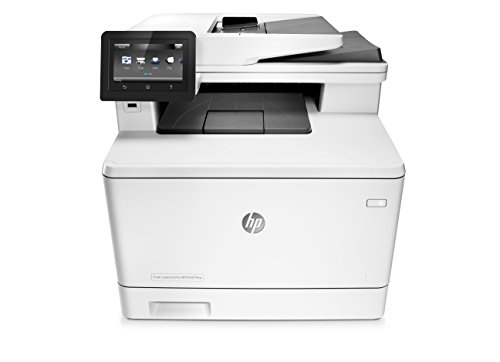
We bought the HP M477fdw color Laserjet to replace an aging monochrome Brother MFC-8860DN and a 4-year old HP OfficeJet 8500A Plus inkjet printer. We used the HP inkjet rarely – primarily for prints of my wife’s water color paintings. And like all inkjets its print quality suffered after long idle periods, necessitating expensive replacement of ink cartridges and print heads. She decided to take future occasional “production” prints to Kinko’s, and use the HP 477 for at-home proofing.
Initial checkout of the HP was generally satisfactory, but revealed two annoying shortcomings: 1) the loud fan runs for about 15 minutes after any activity before shutting down (I discovered later that this can be configured to 1 be minute); and 2) the scan resolution when using the automatic document feeder is limited to 300 dpi. Documents scanned with Acrobat using the ADF were grainy with clipped text baselines and coarse edges on the letters. This limitation on ADF scan resolution is not described on the Amazon page, and is virtually impossible to find even on the HP website. It is buried in a footnote of a spec sheet that is not even displayed unless expanded. This is particularly frustrating since the ADF scanning hardware itself is clearly capable of MUCH higher resolution. Copies made from the ADF are crisp and clear, but scans are not. Apparently HP has hobbled the scan resolution in firmware or software for some unfathomable reason.
After extensive research including multiple calls to both HP (to confirm the 300 dpi ADF limit) and to Brother to confirm that the MFC-L8850CDW provides 1200 dpi scan resolution from its document feeder, we bought the Brother unit. We then conducted a series of side-by-side comparisons of the HP and the Brother.
For each device we compared 1) prints of a high resolution photograph; 2) color copies of two water color paintings; 3) prints of a water color painting scanned at high resolution by Kinko's; 4) scans of the same painting (compared on screen); 5) prints of those two scans on each device (HP scan printed on both, Brother scan printed on both); and 6) a B&W document scanned through the document feeder (both on screen and print comparisons).
Color Copying
Both devices produced good color copies of comparable quality. Neither was great at capturing the lightest shades of water color which could wash out. The color fidelity was good but not great for both.
Color Printing
All printing was on plain paper. The color print resolution of the Brother was decidedly poorer than that of the HP. Hours spent on the phone with Brother tech support (printing various test pages) confirmed that the hardware was working correctly. But the Brother color rendering generates much grainier output. Even when 2400 dpi output is selected, solid colors are often rendered with parallel dark diagonal lines alternated with lighter diagonal lines that are clearly visible to the naked eye. This was true of prints from the photos and from the all scans. It made a man’s suit in the photo appear to be a herring bone tweed, when in fact it was a smoothly woven solid color. In contrast the HP produced finer grained color print – and the correct weave of the man’s suit was visible.
Color Scanning
Both devices produced comparable color scans from the flat bed. As with copying, lighter regions of water color were sometimes washed out. But it’s impossible to say whether this is a property of the scanners or of the screen on which the scans were compared.
Document Scanning
The Brother produced a crisp clear B&W document scanned at 1200 dpi from the automatic feeder. When printed out they were pretty much indistinguishable from the original. As noted above the document scanned from the HP feeder was coarse and grainy with clipped baselines.
We elected to return the Brother printer, based on the print quality, and keep the HP - hoping that HP will eventually release a firmware or driver software upgrade to fix the ADF scan resolution limit.
Awesome product! For home use, had a HP OfficeJet Pro 8500A Inkjet for years and was happy with that. But got tired of constantly changing out cartridges (heavy use) and adjusting the paper-tray to work even though full. The Laserjet Pro M477fdw quality is better than other Laserjets with higher specs, outputting exceptionally crisp letters and bright colors with no smearing or lines in pictures. It warms up and prints fast. It is full duplex, able to automatically print both sides. And wireless network capable. Set up on the home wireless network quickly with no problems. Having used it for a couple of months, the only negative is that the paper-tray is too small. Okay for Small Office Home Office use, but you would definitely want a larger capacity for full time Office use. Caution: With the Inkjet printers, you can get by with Multipurpose paper, but not with a Laserjet.. for long anyway. At work we have both color and monochrome Laserjets. Multipurpose paper is used and color Laserjets have constant problems with color runs, unwanted lines, etc. I've read the chemicals in the multipurpose paper (intended for copy machines) cause problems with Laserjets. I've confirmed it at the local Staples store, the Manager explaining they have to use Laserjet paper with their Laserjet printers or it will void their repair contract. Maybe it takes longer for problems to manifest in the monochrome printers. In either case, I'm not going to chance it at home, and use only Laserjet quality paper. It is more expensive, and heavier weight. The lightest weight paper I can find is 24 lb. which is comparable with the multipurpose 20 lb paper. Any more than 24 lb seems too thick and doesn't feel right. With that in mind, any money you may save in price per print with a Laserjet versus Inkjet, will be offset by the added expensive of quality Laserjet paper. In all, I think the professional quality of prints and ease of use is worth switching from Inkjet to Laserjet.
Update on printer cartridge refill 19 Mar 2016: Get the CF410 series of cartridges and Not the CE410 (for 300 & 400 series laserjets) as Amazon shows both compatible for the M477fdw, but they are not.
Update Nov 11, 2016
The HP replacement cartridges are expensive. Its almost like you buy 4 cartridges, and the printer comes for free! I did find a generic replacement set that costs a lot less. Black and cyan seem to go the fastest, so having an extra cartridge for each on hand is a good idea.
Luckily, the local office max carries the cartridges.
End Update
My wife runs her business out of our house. She was always complaining about having to frequently reload the paper tray on our inkjet printer, the ink cartridges were always running out, and it was slow.
I did my due diligence in my research. The inkjet's tray was 100 sheets. The next size up was 150, which wasn't much of an improvement, and after that, 250 sheets. I figured that was good.
Also, its a Laser printer, so you get a lot more pages from the toner cartridges than from an ink cartridge. Finally, she was tired of waiting a long time to print, because she has a slow laptop, and it did most of the formatting for print. I never had a problem, but my desktop is several orders of magnitude faster than hers.
It is heavy, about 55 lbs. out of the box. Packing adds a few more pounds. The box isn't sturdy enough to pick it up by the cutouts provided in the box. The delivery man tore one a bit, and I tore the other one.
It has a USB slot for a 16+ GB thumb drive, and other slot for a USB cable. You have to remove a cover to get to the fax phone connections. You also get a standard 3 prong heavy duty AC cord.
Setup is straight forward. You have to remove a lot of tape and plastic that was applied to keep the pieces from jiggling during shipping, but they are easy to remove.
You install the software that's on the disk, first, then plug in the provided USB cable. There's an Ethernet port, if you want to use it, but I went wireless, so it wasn't necessary.
The only application provided is a Scan Tool. It gives a lot of flexibility for formats to save to, as well as destination folders. The inkjet has a lot more applications, but I only use the web print tool.
Most paper feeds through the document feeder with no problems, but one glossy sheet fed crooked no matter what we tried. In that case, we can always put the document directly on the platen.
I think the printer got my wife's seal of approval. It printed color accurately last night, and this morning she said "It's really fast." That's a lot, coming from my wife. My mother-in-law was a bank manager for many years. She recognized this as an office printer, and wants to steal it. Considering its weight, and her frailness, I said, "If you can pick it up, you can take it". :-)
It is expensive, but Amazon has the best prices on the internet. There's no need to hire someone to install it, if you are halfway technically competent, and can lift 55 lbs., or you can get help.
It takes a little while to process the print jobs, but after it starts, the pages come out quickly.
I have worked with many printers, several of them fairly expensive. So far this one has exceeded my expectations. The only thing I haven't figured out is how to scan from the printer using the adf. but I haven't looked in the computer software just the printer menu's which are nicely organized and easy to use. You can tell it to over ride the manufacturer ink checks and everything although I probably won't use aftermarket ink at least for a few years because I have had issues in the past with a brother. The prints are great and the print time is very fast, by the time i can get out of my chair a single page or two has printed. No more counting to 10 before it starts to print. I highly recommend. I use the adf to scan from the scan software that came with the computer no problem and it is very easy to use also. I rely on real opinions for all my shopping on Amazon. If this review helped please click yes below and thanks you for taking time to read my review!
I had a cheap HP inkjet all-in-one that had serious issues with going into standby and never waking back up and required disconnecting and reconnecting power to resolve the issue, until it happened again, and again. I was a bit apprehensive after ordering this printer/scanner and reading that others also seem to have issues with standby.
However, up until now, after about 3-4 months of use, this system has worked flawlessly. Some of the issues I noticed mentioned by other reviewers:
- standby issues: I have not had any issues. I have sleep/standby set to 1 minute and shut down set to 2 hours. The printer is connected using wifi and is always available when issuing print commands.
- wifi or networking issues: I use this on wifi, haven't tried wired networking. I once had a minor issue when the printer first got its IP address and at the same time a laptop resumed from standby and had previously been using the same IP address. There was a short conflict. I guess if this is being used in a network and the printer disappears from the network every now and then that there's an IP address conflict. I've now setup networking for the printer to use a fixed IP address that falls outside of the pool of dynamic addresses.
- scanner sheet feeder alignment: I have to agree, no matter how you position the paper, the scans going through the sheet feeder are not perfectly aligned but they're not severely misaligned. Definitely something that can be improved upon but otherwise not a huge nuisance, especially since I can get straight scans from the flatbed scanner.
- scanner resolution: Scans going through the sheet feeder are limited to 300 dpi or lower. Flatbed scans go as high as 1200 dpi.
- straightness of printed lines: Read some reviews that had issues with the straightness of what are supposed to be straight lines. I have not noticed this. Moreover, when I first got the printer I printed some mechanical templates that include a printout of a ruler. I used an actual ruler and measured the printed ruler and it's spot on.
The scanner works well. Printer paper feeding and input tray work as one would expect. Double sided prints look good. Color prints look nice, not as nice as a good inkjet printer but I didn't get this to print color photos, although the occasional color photo I print does look decent. My only 'regret' is that I didn't buy a printer capable of printing on larger paper (like A3), but I would probably not have wanted to pay much more for such a feature.
I have not tried the fax option. Not sure how that works these days or who I would exchange faxes with.

Feature Product
- MULTIFUNCTION LASER PRINTER: Color laser printer, scanner, copier, fax, wireless printing, Wi-Fi Direct, NFC touch-to-print, duplex printing, 4.3-inch color touchscreen, 50-sheet auto document feeder.
- PRINT AT BUSINESS SPEED: Print up to 28 pages per minute with this wireless laser printer. First page out in as fast as 8.9 seconds for black, and 9.8 seconds for color.
- SOLID SECURITY: Protect sensitive information and improve compliance with data, device and document security solutions for your print fleet.
- HP JETINTELLIGENCE VALUE: Choose Original HP Toner cartridges with JetIntelligence - engineered to help your HP LaserJet printer print faster and more prints.
- IDEAL FOR SMALL BUSINESSES: 300-sheet paper input capacity, up to 4,000-page monthly volume, and up to 10 users for your workgroup.
- Paper sizes supported: Letter, legal, executive, 3x5 in, 4x6 in, 5x8 in, envelopes (No 10, Monarch)
- NEVER SHOP FOR TONER AGAIN: Save 10% with Amazon Dash Replenishment. Upon activation your printer measures toner level and places smart reorders when you are running low. No subscription fees.
- Warranty information: One-year limited hardware warranty
Description
Unmatched print, scan, copy, and fax performance plus robust, comprehensive security for how you work. This color MFP finishes key tasks faster and guards against threats. Original HP Toner cartridges with JetIntelligence produce more pages. Scan digital files directly to email, USB, network folders, and the cloud with preloaded business apps. Grab pages and go—without waiting around – this MFP wakes up and prints faster than the competition.
For years I've always used brother printers and when I purchased their most recent model, which started to smear toner, Brother could not fix the issue despite replacing various parts, so I decided to send it back and try HP for a change. Wow, was I blown away by how much more advanced the HP is compared to one of the top model brother MFCs I sent back (MFC-L8600CDW).
This HP Printer makes Brother look like their stuck in the early 2000's for the following reasons:
1. HP Starts up MUCH faster and prints faster.
2. The DPI on HP is much finer, smoother and more detailed. Brother is grainy, even on higher DPI setting.
3. This printer is smaller and quieter than the brother.
4. The LCD on the HP is like a little iPad, good quality graphics, very responsive, intuitive menu's, beautifully done. Brother's LCD is grainy,
outdated graphics, doesn't always respond to touch, and has more confusing menus.
5. Overall build quality feels more solid and tighter tolerances during assembly, unlike the flimsy/cheap assembly feel of Brother.
6. Wireless connection is super fast to find WIFI (literally 2 seconds to show a list of all found networks), super fast to connect, and very responsive to print (literally 2 seconds after I press print on computer for a word document, the printer starts).
7. Very intelligent menu for toner life (shows you amount of pages printed for EACH cartridge individually, % of toner left, how many pages are left, Serial # of each cartridge and even when it was installed!)
8. It looks more high-tech and advanced than Brother's Big Bulk Black box.
The only cons I have this this HP where Brother outperformed:
1. This HP models seems to have a small defect with the scanning element on the flatbed, it's installed about 0.4 degrees off making scans come out a bit crooked (see my photo). This is easily remedied by the "Straighten" function in HP Easy Scan app, nevertheless, it's a defect and is a nuisance. I even ordered another brand new HP printer like this to see if I had a dud, and they all appear to have this defective offset.
2. Makes weird rubbing noise when scanning through ADF.
3. Does not have spring loaded latches allowing the top lid to raise and adjust when scanning books or thicker documents.
4. The customer service is horrendous. Long wait times (live chat said I'm 1st in Cue and 2 minute wait, 15 minutes later it finally connects to an agent who takes another 10 minutes to respond). When I called by phone, a totally unprofessional person responded who sounded like she didn't want to be bothered. No real solutions, no rating system for employees, hence, they don't even bother trying to do good.
I absolutely recommend this printer if you don't mind the cons, it's the best MFCs for small business and home use on the market currently for the price.
I bought this to replace an Epson WF3640 Inkjet all-in-one and a Canon MF4770 laser all-in-one. While both of those were surprisingly finicky to use (the Canon being worse), once this printer is setup, it is excellent. If there were half stars I'd give it 4.5 because there were two annoying things to get right with the setup that really should be unnecessary.
The first is that this unit arrived producing scans that were slightly crooked. After reading about this problem on the internet, I found the menu where I could check a box correcting crooked scans. Duh - why isnt this a default? The second is that the default when it arrived was not full duplex printing. Instead, the printer prompted me to manually duplex. Once again fixing this involved an internet search and another checked box in a hidden menu.
Otherwise, once it is setup, the unit prints beautifully, quickly, and is easy to use.
I highly recommend this unit.
I bought the lower model M477fnw from Best Buy and immediately I fell in love. Unfortunately this one had Ethernet + Wifi but not automatic duplex printing. I had to return it back then I bought M477fdw from Amazong (Technology Traders) and it was like a dream come true. I tested this machine over and over again. It's very fast in printing Black and colors as well as scanning with duplex pages too, it's sleep functions will help greatly reduce power consumption. There are now 3 laptops using this through wireless connection. My wife, my son and me. Since they are students. First of all, setting this up is a easy enough for any one. So, after you unpack it, put it in a suitable place, all you have to do is plug it in a outlet. Turn it on, then set up it's wireless connection. After that, just put the CD driver that comes with it and install the driver on each machine. This process takes between 7 to 10 minutes according to the speed of laptop. Then you're good to go. A note here that happen to me, if this printer does not print auto duplex pages, I have Win10, you go Start button => settings .> Devices > Devices and printers => right click on HP Color LaserJet Pro MFP M477 PCL-6 > Printer Properties > Device Settings Tab> select Installed from Duplex Unit. That's it. It was delivered ahead of time with good packaging and as described.
To fix the ADF scanning issue (where it freezes - either with HP Easy Scan software or the native Mac scanning app), do the following (my pain is your gain!):
1. Set-up the printer in a place where you won't run into it with your knees. I used the touchscreen to search for my wireless network and it was smooth to connect.
2. Search for the model number on the HP website (hp dot com, then click "Support" menu in top right section of the page, then click "Software and drivers." Search for M477fdw (this printer) and then change your OS to 10.11 (I'll tell you why in step 4) and click on "Change"
3. Did you change to OS 10.11??
4. Expand the software lists and download the HP Easy Scan software. Run it to install both the "Essential" software/driver and the Easy Scan software as well.
5. Next, download the firmware update for your printer, version 20160921, dated October 20,2016 (if you search for OS 10.12 this latest firmware does not show up for some reason, it only shows the January 2016 firmware).
6. When you download the above it will create a file on your Mac desktop with the same name (it will have a CD drive icon). It took me a while to figure this out :)
7. Make sure your printer is turned ON, click on firmware file from your desktop, then run it to re-flash the printer firmware. The printer will automatically reset (2-3 times). Once the printer LCD screen is back to the options Home page then you're good. To check that the latest firmware was updated, go to the printer's LCD screen and tap Setup --> Service --> Firmware Datecode
We're not done yet! Why would we be??
7. Go back to the HP website (Support --> Software and drivers) and search for this model: HP LaserJet Pro 200 color MFP M276nw
8. Change to OS 10.11 again! Click "Change" (again!)
9. Look for "HP Software Update to address Automatic Document Feeder (ADF) scanning issues with HP LaserJet products on OS X El Capitan" - DOWNLOAD IT!
10. Install the above. Restart your Mac. For giggles you can also turn off your printer and turn it back on again.
If you did the above correctly, then you can now scan documents from the ADF using the HP Easy Scan software without any issues. For best results, in the Presets drop-down menu, select "Edit Settings" and set it to scan from the ADF (instead of saying Automatic, under Source), and make sure to check the "Straighten Pages" checkbox.
Eat a sandwich! Drink a beer! Kiss a stranger! You're all done!
Superb printer! This was an upgrade to our 10-year old Brother 9840, which started having problems that exceeded the cost of a new printer. The installation of this HP was amazingly simple. First, there was zero assembly required! Even the toners were preinstalled! Just took it out of the box, pulled off some packing tape, and fired it up. I then entered in the WiFi password for our home network. We have 3 Macbook Air computers, 3 iPhones, and 2 iPads and they all instantly connected. It is nice to be able to print from the iPhone! Print quality, both B&W and color, including pictures, is superb on printer paper (have not tried photo paper or heavy stock). Printed page comes out almost instantly (the old Brother took about a minute before the first page printed - arghh!!). Duplex printing is fast and quiet - no jams. Copies are scanned and printed instantly. It is an office quality printer, both in terms of build quality and performance. Time will tell on reliability, but I can tell you that I have a 20+ year old HP 1200 laser printer that STILL WORKS FINE! One thing I will not do again is to use any aftermarket toners or parts. I think that is what utlimately ruined my old Brother printer (the aftermarket toners leaked and streaked instantly). HP parts all the way for this new printer. The unit is very quiet when printing, goes completely to sleep but wakes up instantly when called upon to print, and has a very compact footprint. HP toners are just as expensive for this unit as any other, but the high yield cartridges are more cost effective. A safe purchase for sure!
markkowaleski.com
0 comments:
Post a Comment