


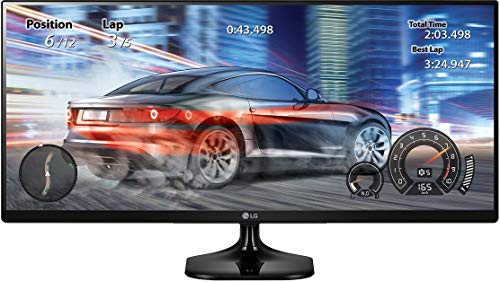
I bought this screen to connect to a MacBook Pro (Retina, 13-inch, Late 2012) running MacOS 10.13.6. I couldn't get the correct resolution functioning 2560 x 1080 was just not an option in the list. I had to buy additional software (SwitchResX) and disable SIP from the system settings!
This isn't a fault with LG but rather Mac doesn't want to have people using unusual monitor resolutions.
This is a barebones monitor, as such it does not have a whole lot of features more expensive monitors would have.
There is only one option for video connectivity; HDMI (however there are two ports). There are no speakers built into this unit, instead a 3.5 millimeter jack is provided to act as an audio passthrough with volume control.
This monitor does not have freesync or gsync.
if the lack of variance for connectivity or fancier refresh rate processing is a deal breaker then this is most certainly not the monitor for you.
That being said the display itself is beautiful, there is no hint of pixelation, the colors are very nice and there is not much noticeable back light bleed. Compared to a retina display or a thunderbolt display this monitor stands up. It looks very much like a matte version of a Dell ultrasharp.
Before purchasing this i've read that 21:9 isn't "worth" it for screens smaller than 29 inches. I would have to disagree, this screen is excellent for productivity. I am able to have multiple text editors open at once, and they each feel like they are on their own display.
It is true that these montiors are a little short compared to what you might expect. However that loss in vertical real-estate is more than made up for in terms of horizontal real-estate. Before i used the monitor i was a bit concerned though those fears left as soon as I began to use the monitor.
I did buy two of these right off the bat, and in hindsight it might have been a better call to get a singe 29 or 34 inch display. Two of these is a lot of screen space to use to the point that it is almost overwhelming.
Physically the two next to each other are almost as wide as my 50 inch plasma TV.
They do have vesa mounting holes, spaced at 75 x 75 mm and I have mounted my displays. My vesa mount is rated up to two 27" monitors. I didn't think about the fact that these are wider than the usual display and as a result these monitors are pushing that limit.
I do not think my vesa mount would work with two 27" 21:9 monitors.
Neither display has any dead pixels, discoloration, or any other abnormalities to them.
Like i said this screen is beautiful, and the low cost is almost certainly due to the lack of other features like multiple input types, and not a result of the screen itself being of low quality.
This monitor is nice and light, which is great for wall mounting. I wanted a bigger higher resolution Ultrawide, but those are like $600 and the space was a concern. I love the extra horizontal space, and I ditched the previous two monitor configuration I had.
I run two computers through a 4K HDMI KVM, and everything works great.
My laptop running Ubuntu Gnome Shell, displays beautiful images at 60Hz rate without any intervention.
Mac Air needed some extra stuff to make it work. Not LG's fault, but Apple's. They want you to stick to the resolutions of the displays they sell. This is what I had to do to get it to run 2560x1080 @ 60Hz.
1: Download and install this patch mac-pixel-clock-patch-V2 (I had to provide the arguments "patch v4", because it didn't automatically find my patch. Read the github issues sections for more info about that.
2: Install SwitchResX, choose LG Ultrawide, click Export EDID, and save the text file on your Desktop or something.
3. Read the file and find the parameters of the 2560x1080 60Hz, and enter them as a custom resolution. (I found them on the first block)
4. Download the ICC profile from LG support site (it's inside the windows driver's download zip), install it on your mac and apply it. Optionally you may calibrate the colors on your own.
I love this monitor. I didn't want a big screen for my desk, but wanted to have a monitor that I can easily do split screen. This one is great! Some people mentioned that the split screen doesn't work for windows 10, but it does. I downloaded the software from the product website. I was amazed how quick and easy to change several different ways of screen splits. I love it and this will allow my multi tasking jobs easier.
This is a pretty good choice and almost life changing for basic tasks like using chrome, YouTube and doing work on it EXCEPT for gaming. I purchased this as my first monitor for my gaming pc and while it is beautiful for as said above, in gaming it makes very little sense. The screen size is too small for ultrawide gaming to be enjoyable. When they say it is a 25 inch screen, it is measured diagonally, which means since it’s an ultrawide, that length is not the same as it would be for a normal screen or tv and its a lot smaller. Especially if you’re playing games that don’t support ultrawide resolution. The 16:9 size of this screen running non ultrawide games is only 20 inches, which is REALLY small. The lowest screen size you can and usually would want to purchase for a 16:9 screen would be 22 inches at the VERY least. Most average 16:9 monitor size that people usually purchase for gaming monitors is 24 inches, while the biggest people can comfortable game on is 27 inches. On paper it doesn’t sound like a big deal but it makes a huge difference and you will most likely notice it after using it for awhile. Other than that, the monitor has beautiful color accuaracy and viewing angles since it’s an IPS panel and of course since it is a budget ultrawide, the screen is a normal 60hz refresh rate, which you’ll only need to worry about if you were going to use it for gaming. Pretty decent for price but ultrawide gaming should be done on something bigger for it to be enjoyable.

Feature Product
- 21:9 UltraWide IPS Display
- sRGB over 99%
- PIP mode in Screen Split. Response Time- 5ms (High). Brightness (cd/m2)- 250(Typ), 200(min) cd/m2
- Game Mode.Black Stabilizer. Compatibility-Windows 10. Set the color to 24 bit
- Without Stand W*H*D 24"x 2.2" x 11.3". With Stand (WxHxD)-24 x 7.4 x 15.1 inches
Description
25-Inch 21:9 UltraWide IPS LED Monitor. Monitor features sRGB over 99% for color accuracy. Also includes Screen Split 2.0 for multi-tasking and Game Mode for improved gaming. With Stand Weight:8.8 Pounds
The size is fine. If you want to keep it back several feet or if you don't have good eyesight it could be an issue, but it's really not much different at a close distance than your average laptop screen in terms of PPI (pixels per square inch). Most video media is not in 21:9 format, in fact I have yet to find a single video which is (it's only been a week, to be fair), but I find using VLC and setting a 16x9 to 2.21:1 has an acceptable level of stretching while keeping the side bars to less than 20% of viewing space.
This monitor isn't meant for movies, though it would be nice if the industry format shipping on disk or streaming changed, and that may well happen but don't expect it anytime soon. The monitor is meant for professionals. I'm in IT, and recently made a jump from admin to development. It was a PITA working solely from my laptop screen, and going between two rigs one being that laptop, the other a large LCD in my living room was still troublesome. Now I use my laptop for full-screen instructional videos, and then have the 21:9 with documentation on one side, and my IDE on the other, plus about 50px left which has two terminals in the background. I can click these into view or back out rather easily.
This enables me to remain focused, not having to switch between tabs... everything is in view at all times. I was uncertain how much this would help, but figured it would be at least a little less painful. It's even more than that. I'd posit at least a 30% increase in productivity for a given block of study time.
The 34" monitor with 3440x1440 would make my laptop screen unnecessary, but I couldn't justify spending thrice as much. This works perfectly fine for now. If I had unlimited funds I would get the 34 in addition to the 25, and have them running on independent rigs. This may wind up being a best solution when I go pro and require simulating production environments for multiple clients. For now, and for most people's needs, I suspect this monitor more than suffices.
The 25 inch ultrawide monitor by lg is a great stand alone monitor. Lots of easy to learn functionality. I use it with my ps4 pro and Comcast. Because of the extended real estate on the screen I decided to go with a 2 x 1 multiviewer sold separately to display both images from PS4 and Comcast simultaneously side by side. It's basically like two 15 inch 4:3 ratio monitors. For anyone interested in my experience check out my review on the HDMI splitter and the ultrawide with PSVR.
If you have a need for a great all purpose monitor, and have a budget for office, home office, or general use, need a split screen, the LG 25UMS58-P is the monitor I recommend. I have set it up and use it daily. I use it mostly in split screen mode with 2 or 3 splits to do editing on documents or spreadsheets. When I need the extra room I use it full width single screen. Edit videos, pictures, or those large spreadsheets. works great with no glare (I have lots of windows around me) and a nice brightness and contrast, all which can be set from your desktop from the software provided by LG including there split screen technology. The only con so far is that the power cable is I would like a custom screen split setting in the software. What would I like to see added 2 USB 3.0 or USB C type ports to act as a hub. Neither is a deal breaker and would of course raise the price of the monitor. Great UltraWide monitor. Well worth the price.
My RX480 defaulted to Full RGB output (HDMI) which is severely overhyped with the default monitor settings. From the Custom picture mode on the monitor, I'm using 50 Black Stabilizer and High Black Level, which is as neutral as it gets. Other settings may work well to expand "typical", limited-RGB signals.
I don't know why this is not detailed in some sort of manual.
Thanks to CRU, Custom Resolution Utility, I was able to make a 2560x1080 @ 75 hz profile that works flawlessly. Also, Idk why this isn't a default option.
I bought this for my mom, because her laptop is 13.3" and she does a lot of business stuff and needed more screen real estate. I'll start with the positives.
+ Ultrawide: obviously this is the reason why you would get a 21:9 monitor, and this is great for that purpose. I used it briefly with Premier Pro and the long timeline scrubbing is simply beautiful. Not having to scroll to edit very different pieces of the video is really nice. I can have multiple files open with video clips and transitions. I need to get an ultrawide for myself.
+ Lightweight: its probably not the lightest monitor on the market at this price range, but my mom is 56 years old (Im 23) and has had 2 surgeries on her wrist. She can pick this up with both hands rather easily if she needs to move from one side of her desk to another.
+ 2 HDMI ports
+ Matte screen: my moms desk is under a sun roof, and this thing is great at reducing glare and reflection.
Now some critiques and negatives, but not all of them are negatives, just some oddities to note:
- Biggest actual negative: Glossy finish (of exterior and base/mount) The black glossy finish of the mount and backside is a dust magnet. We only bought this for a week and its already collecting a significant amount of dust. Youre going to be wiping this thing down pretty often.
- Not height adjustable: This isnt really a negative as we knew this before buying it. But it does kinda suck. Obviously if you want height adjustable, youre gonna have to spend more. But still. My mom has it on a monitor stand which helps.
- *WEIRD THING* In the screen menu when using the little joystick under the screen, there is an option for volume from 0-100 and it is adjustable. You can turn it all the way up or down, but if Im not mistaken, this thing doesn't have any speakers? We have tried numerous times to get any sort of sound out of it, but I am certain there are not speakers. Its odd that there would be a feature in the settings menu to adjust the volume then.
- SKINNY LATERAL: 25" ultra wide is really narrow. This is one thing we didnt anticipate before buying. Reading the dimensions on paper and watching video reviews of this monitor on youtube doesnt actually prepare you for how skinny this thing is when you use it. For future reference, I myself would go for at least 29" ultrawide, because while my mom does not have a problem with it, my dad and I both notice that the vertical space you have on this is really small. It is plenty wide, but just feels cramped in the y axis. You really cant understand what I mean by this until you try it out for yourself.
Overall, if you just want a decent ultrawide in 1080p and dont have a budget of $250+, this is a great introductory monitor to the ultrawide field. Cant say any comments on how it is for gaming, but for productivity and some media consumption, this is awesome. 4/5
0 comments:
Post a Comment