


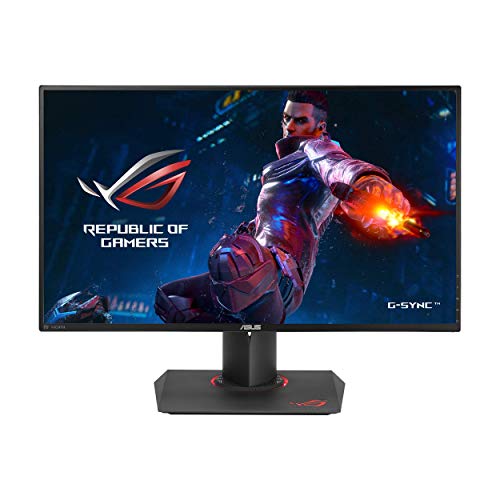
I've waited about 6 months to review this monitor. I wanted to be sure that I had plenty of seat time behind it before I pass judgment on it. I thought about buying this thing for a long time before I bit the bullet. To clarify (since Amazon lumps a ton of different models into the same page) this review is for the PG279Q 27" 1440P IPS 144/165Hz G-Sync version.
I read about a ton of complaints regarding light bleed at the corners that scared me. The Amazon listing even states "Product Alert: IPS (In-Plane-Switching) is a technology for LCD displays that offers users wider viewing angles and bolder colors by allowing more light to pass through the panel. As a result, IPS panels can exhibit a slight glow around the edges and corners (also known as light bleed), which is entirely normal." I figured that even if my panel exhibited this condition I probably wouldn't care because I'm not that picky about stuff like that. Truth is, even if my panel has that problem, I don't notice it or don't care. It's absolutely, perfectly fine. Maybe I got a great panel, maybe I'm not picky, but no matter what I'm happy and that's what matters.
I've recently transitioned most of my gaming from console to PC and in my upgrade I wanted a nicer monitor than my old cheapey 1080p display. I wanted G-Sync since I have an Nvidia card and I wanted to go as big as my desk would allow. I knew I wanted IPS since I wanted accurate color representation since I do some photo editing. Everything came back to the ASUS PG279Q. I love it. The size is perfect and the slim bezels are great. The stand is fantastic and has a lot of range of movement. It's all smooth and well supported; even if my desk shakes the monitor and stand seem perfectly still without any wobble. The stand has optional red LEDs that can be lit around the base and the 3-inch long ROG logo in the right front corner. Build quality is standard ASUS affair, which is to say very good. I'm looking forward to buying an ASUS/Nvidia BFGD display in the summer.
The OSD is phenomenal. There's a joystick behind the panel that can be used to navigate the display settings which is AWESOME. every other monitor I've ever used makes you navigate the display with buttons that are poorly labeled and have weak tactile feedback. The joystick moves in 4 directions and pushes in to confirm settings. I almost never use it but it's awesome. Another great feature of the OSD is the fact that it can display it's own frame count so you don't have to rely on 3rd party programs to show you FPS. The G-sync works exactly as advertised. It's totally tear-free no matter how many frames the GPU puts out. Playing super intense games like Witcher 3 at ultra I'll sometimes see frame count go down into the 40s on a GTX1070 but I almost never notice it with G-Sync.
In terms of the panel and display itself, I'm incredibly impressed. I'm by no means an expert or a "pixel peeper" but I feel like my money was well spent with no complaints from me. No dead pixels, super-high adaptive refresh (with overclock!), low latency, and super accurate color representation. I know it sounds dumb, but even running the Windows desktop at 144hz is cool. Window and mouse movement is so SMOOOTH. Every game I've played looks better on this display, at this resolution. I was afraid that I wouldn't notice a difference between 1080p and 1440p, but it's noticeable. It's not as big a difference between 720p and 1080p, but it's there. Games running at this resolution and at 60fps or beyond look INCREDIBLE. I can imagine 4K is better but I'm not rich enough to afford that much GPU horsepower.
I think this monitor falls victim to misconceptions surrounding the differences between "Backlight Bleed" and "IPS Glow". They are two completely different things, although they can look somewhat similar to the untrained eye.
IPS glow is an effect where off-angle images can appear brighter or slightly washed out. This is a characteristic of all IPS and IPS-like panels. When you first look at the monitor, you may feel like the corners or edges are washed out and think "that's backlight bleed!", but if you actually move your head and closely inspect the edges, you'll see that effect disappear entirely. This is "IPS glow", and you can reduce or eliminate it by viewing your monitor as close to straight-on as possible, and increasing your viewing distance slightly. No amount of returning this monitor will make that effect go away, nor will buying a different IPS monitor. They're all going to do this.
With that said, backlight bleed can still happen. You can confirm the difference between IPS glow and backlight bleed by viewing the brighter spot as close to straight on as you can manage. If that area of the screen looks fine when viewed straight on, it's IPS glow. If it still appears brighter, washed out, or even has a slight hue to it regardless of angle, THAT is backlight bleed, and that is what you're going to want to look for when determining whether or not your monitor is defective or was part of a batch of legitimately defective units. Which, by the way, ASUS knows an exact range of serial numbers that did not go through an enhanced QA process, and will cross-ship a replacement monitor to you, only requiring that you prove you own the monitor and the serial number is within a certain range. This protects you even if you bought somewhere other than Amazon.
As of the time of this review, the monitor will be well on its way to 3 years old. Don't fret about its age; while newer monitors exist, IPS panels haven't gotten any faster. Newer models may have access to higher resolutions or different panel sizes (such as 4k or 1080p/1440p ultra wide), and the electronics surrounding the panel itself may include new features like black equalization, the panel in this particular model is fast and high quality, and not easily surpassed. The color performance is exceptionally well tuned out of the box, and the pixel overdrive function is as close to perfect as you can get. TFT central's review of the unit shows less than 5% overshoot artifacting on only a handful of transitions, which will barely be perceptible to the naked eye. They measured a true 5ms response time, which was nearly flat across the board. You wont run into issues where some colors are easier for the pixels to transition to and from than others, the performance you see out of the box in one game is going to match the performance of another. No 'hidden surprises' where a darker or brighter game you haven't played yet has the potential to turn the whole screen into a smeary mess or even shift the hue of the screen entirely with subtle overdrive artifacting or pixel overshoot.
If ASUS actually bothered to recall all of the defective units, and if the price was less than $600, I wouldn't hesitate recommending this monitor to anyone. The monitor is still a bit on the expensive side, and you are expected to take a small risk that could leave you with a monitor that may not be very fun to look at until Amazon or ASUS cross-ships a replacement to you. One or both of them will eventually make it right. Personally, I believe there are two tiers of gaming monitor worth buying. A super fast TN panel, for the esports gamer that finds anything higher than 2ms response time to be unacceptable, with some nice side effect bonuses like zero potential for "IPS Glow". For everyone else that is willing to trade 1-3ms of response time for vastly superior image quality, this monitor is available. Hopefully it continues to be, similar monitors don't tune the pixel overdrive response as nicely as ASUS has and that can reduce the pixel response time or result in more overshoot artifacts.
Picked this up to go with another monitor to complete my dual monitor setup for gaming. This thing looks amazing! It came in nice sturdy packaging and was delivered lightning fast thanks to Amazon Prime.
Things I would like to note:
1. 144Hz/165Hz are only available with Displayport. Make sure that you get one that is DisplayPort 1.2 with HBR (High Bit Rate) 2 support. There is one included in the box, but I opted to get a better quality one here: UGREEN DP to DP Cable, 4K DisplayPort to DisplayPort Cable Gold Plated 1.2 Version
2. Calibrate your monitor. It looks good, but not perfect out of the box. Calibration takes this thing from good to great! A lot of people complain about Back Light Bleed, but this can be minimized my properly calibrating your monitor and turning brightness down. There are a lot of guides out there, but I used one on Tom's Hardware as a starting point.
That said, the 165Hz refresh rate with G Sync make games buttery smooth, and the 2K resolution is a nice upgrade from my other monitor. Other nice to have features include a built in FPS counter and blue light filter.
This review is for the Asus PG279Q
My initial experience:
I upgraded from a 27 inch curved 1080p 144hz Asus monitor to this one and I will say the difference is amazing. Games are much more crisp and with G-sync on much smoother. My GTX 1080 is able to pump out good frame rates to keep this beast happy. But I do have an RTX 2080 Ti on the way to really make use of this monitor. I'm not into 4K gaming so this monitor was perfect for me as I prioritize high refresh rates.
Shipping and product quality:
My first monitor came faulty I am guessing probably from being shipped as the left side of the monitor had red lines going down it when displaying blacks. Amazon shipped me a new one right away and it's perfect. Zero stuck or dead pixels and everything looks great once you dial in a profile you like.
What I dont like:
The speakers of course are not good at all like with most built in speakers but they work and it only comes with a passthrough 3.5mm jack that disables the speakers. I use an external DAC and Amp and would have liked to have it passthrough to the monitor speakers.
I only wish it was less expensive so others could experience this level of quality going up from a 1080p setup.
I read all of the reviews and warnings from people on various sites stating the problems with QC these monitors have but I decided to go for it anyways. First monitor I received indeed had a major issue. I can't say for sure it's what people are talking about when they refer to these monitors having a lot of dead pixels right out of the box, but it's possible. It had a large cluster of dead and stuck pixels on one side of the monitor. It actually looked like someone dropped it on that side, but it's hard to say for sure.
I put in an exchange with Amazon and they were amazing. Within 24 hours of putting in the request I had a second monitor and this thing is working perfectly. It's a great monitor. No dead or stuck pixels at all that I have noticed.
People talk about backlight bleed or IPS glow on these monitors and I honestly have no idea if my monitor suffers from either of those because I am unsure what to look for. I have not noticed any problems at all with this monitor so if it does suffer from those issues it can't be a serious issue.
This monitor is fantastic though. The on screen display for adjusting the settings is great. The colors and graphics on the monitor are great, it's easy to overclock it to 165 Hz.
Update: After doing more research into what exactly backlight bleed and IPS glow is I have determined that my monitor does not suffer from backlight bleed but does suffer from IPS glow. Here's the thing; it's only really noticeable if I'm looking at a completely black screen and my room is dark. If my room is lit it's almost impossible to notice the glow even while looking at a black screen and if I'm specifically looking for it, if the screen isn't completely dark it's very hard to notice the glow as well. Seeing as I don't expect to be looking at completely black screens very much I don't see this as much of a problem.

Feature Product
- 27" QuadHD (1440p) with thin bezel design, the best balance of screen size and resolution for gaming
- ASUS Eye care technology with TUV certified Flicker free and Blue Light Filter for less Eye fatigue; Ergonomically-designed stand with Tilt,Swivel,Pivot,Height adjustment plus wall-mount capability for comfortable viewing position
- Breaking the 144Hz Barrier with 165Hz refresh rate for even smoother gaming graphics. Compliance and Standards- BSMI, CB, CCC, CE, CEL level 1, ErP, FCC, J-MOSS, KCC, PSE, RoHS, UL/cUL, VCCI, WEEE, WHQL (Windows 8.1, Windows 8, Windows 7), RCM, TUV Flicker-free , eStandby, TUV Low Blue Light
- IPS Panel displays full sRGB gamut for immersive life-like color in games, movies, and design
- NVIDIA G-SYNC Technology removes stutter and screen tearing for the smoothest gaming experience; NOTE: Check User Manual on Technical Specification before use.Panel Backlight / Type : In-Plane Switching
- Mounting type: VESA Compatibility - Mountable 100 x 100mm
Description
Surrounded by 144Hz pretenders to the throne, only the ROG SWIFT PG279Q is utterly victorious with 165Hz refresh rate on IPS and NVIDIA G-SYNC Technology. Equipped with ASUS exclusive Eye Care and ergonomics to minimize eye stress, prepare to stay on top of your game for extended amounts of time. Display Colors : 16.7M (real 8 bit). IPS is a type of panel technology of that provides a wide field of view. Based on the principle that liquid crystal polymer runs horizontally, this allows for good viewing at wide angles and a fast response speed.
From a distance, yes, this monitor is beautiful. Videos, picture editing. But hear my warning, no one talks about the unremovable, IPS repercussion of motion blur during high-end gaming movement and camera turning. The 4ms response time feels good if you're not used to anything better. After playing games like:
Star Wars Battlefront II, Battlefield V, The Division, Elder Scrolls Online, Planetside 2...
The motion blur is unchangeable. You will notice it immediately when you first this monitor, but you'll assume it's your PC, micro stuttering, or a NVIDIA setting you just need to adjust. Wrong. Even setting this monitor to ULMB will make zero difference from G-Sync on the motion blur. This is just an effect of this IPS monitor, maybe others like it. I had to do extensive user reviews to find out that a LOT of hardcore gamers were experiencing my exact problem, explained that IPS monitors are just at a stage right now where you can't have both high-end, popping image quality and color combined with low motion blur.
The SOLUTION? PG278QR. The sister model. The TN panel. You'll say the color banding kept you from purchasing it, IPS looks better, etcetera... well, listen up. The 278QR version has 1ms response time. From my two months with the 279, going to the 278QR? The response time difference is MASSIVE. I mean, +2.0 KD differences we're talking about here. Although it's a darker monitor style in general, and the colors don't look like you can reach out and touch them, the motion blur? Completely gone. No more headaches. No more running around in a Call of Duty style game and having to squint every time you turn the camera. If you want a intensely positive gaming experience, if you're a hardcore gamer and want both insane graphics combined with impeccable response time, you NEED to get the PG278QR and trust me on it.
If you don't do high-end, fast reaction gaming... stick with the IPS. It's good for things that are standing still and not moving.
I debated on buying the ASUS PG279Q (IPS version) monitor for the longest time due to the poor reviews. I finally made the plunge purchasing and I am glad I did. Let me start off by saying I am a very picky person. The BLB on this monitor was so minor (pretty much non-existent.) There is some minor IPS glow in the corners, but it is only visible in a pitch black room with brightness blasted at 100 percent and viewing the monitor at an angle. Why on earth would you ever game in a pitch black room at max brightness anyway? Every IPS monitor I have ever owned has IPS glow, including my TV. This one is no different. It actually has less IPS glow than my other monitors.
I play my games in a dark room, but usually have the brightness pretty low to not hurt my eyes. I am currently running this monitor at 25% brightness and it is beautiful. The colors pop very well and the build quality is amazing. Everything about it is perfect. The specifications speak for themselves and it is by far the smoothest monitor I have ever owned. I have ran the UDPix application and tested every color with no stuck or dead pixels. The stand is very sturdy and easy to adjust. The build quality just seems superb. The speakers are kind of meh, but I didn't buy this thing for the speakers as I always use a headset anyway.
If you were like me and are debating on buying this monitor, just go ahead and go for it. The photos of BLB in other reviews exaggerate the situation and are a worst case scenario. Cameras cannot pickup how the human eye sees it and often times make it look worst that what it really is. My monitor has no backlight bleed visible to my eyes (yes I have 20/20 vision lol), but if I hold my iPhone camera up to see it, it is visible. But, obviously I am not using this monitor through my camera haha.
By the way, my manufacture date was April 2016.
Pros: High framerate (obviously), colors, easy to use OSD, thin bezel, small footprint
Cons: Expensive, tacky color scheme, can get hot
Update: Found a dead pixel near the top-center of the display. While it is barely noticeable during gameplay, I don't think a $700+ monitor should come with a dead pixel. Fortunately, Amazon is willing to take it back.
The PG279Q is probably the best 16:9 1440p G-Sync monitor you can buy right now. It is extremely smooth and the colors look great. There are multiple preset color profiles or you can set your own. I think cinema mode looks the most natural to me. When paired with a graphics card that can drive this thing, you'll be able to enjoy games on a totally different level. I was using a Qnix QX2710 overclocked to about 80 Hz before this. It's a good monitor, but it pales in comparison. With a maximum refresh rate of 165 Hz, you'll be able to enjoy the most demanding games with no problem, provided you have a good enough graphics card. I didn't see any apparent backlight bleed, but some might be worse than others.
I'm currently using an EVGA GTX 980 Ti Classified (with a slight overclock to core clock and memory) to run this monitor. At max settings, I'm able to get pretty good framerates for most games I play. For Hitman, I get about 70-90 FPS depending on what's being rendered. For Overwatch, I get well over 150 FPS on max settings; that game is extremely well-optimized. Those are only two games I have tried so far. I will update this list once I get around to it.
The OSD menu is also very easy to navigate. There's a small joystick and several hardware buttons. The options are laid out in a way you'd expect. Nothing new here.
Personally, I'm not a fan of the red and black color scheme that's on pretty much every gaming-related peripheral. I think it's overplayed and tacky. I'm a fan of simple design and colors. I can see why it might appeal to the regular gamer, since it's bold and screams "performance". Even though the logo on the base lights up red when the monitor is turned on, there's an option to turn it off in the OSD menu, which is a very welcomed option. With that off, you don't really see any of the red accents unless you look at the back of the monitor.
The monitor can get hot after hours of use, but I don't think it's anything unusual for high-end hardware. It can definitely increase the ambient temperature, so if you're sensitive to that, it's something to note.
While this monitor is expensive, you do get what you pay for. It is a beautiful panel with an extremely high refresh rate. If you can afford this and have the graphics card to drive it, I definitely would recommend it. It looks great and doesn't have any glaring problems. If you're not ready to drop four digits on an ultrawide G-Sync monitor, then this is the one to get.
Excellent features, It's one of the best gaming monitors until now, in the future will come better technologies like HDR and OLED and best video cards to move more pixels more fast, but for now, best in class, mmm probably IPS panel are not as good I expected, they have some problems, fortunately not my case, but anyway, these kind of monitor suffer two problems: IPS glow and Backlight bleed, many people complain about that, in my case, I didn't see much problems with backlight bleed, very little in dark room, probably some of them have QC problems, but the new batch have fewer problems, IPS glow is very common, in my case I see some when I view the monitor in certain angles, It's the reflection of some objects and room light, but when you are in front of the screen no problems at all...
The good part is that this monitor has a lot of features that make sense for the price, doing aside QC problems, you get the best for gaming, G-Sync by nVidia for sync frames, IPS panel with excellent color reproduction, 144 Hz / 165 Hz (OC without G-Sync), good resolution WQHD (2K) for fast response and suficient resolution (you will need a top end nvidia graphic card, GTX 1070/1080, or SLI), good OCD menu and buttons, pretty red ROG lights (you can On/Off), easy adjustments for screen position, and other more details, I really like the color reproduction of the screen very vivid, I feel very satisfied with the purchase.
Monitor is great, colors are vibrant. When Gsync works well it is absolutely amazing. The latency is so low that I prefer 30fps gsync to 60fps without, though of course high fps gsync is even better. I'm using it on PUBG. Mine is paired with a GTX 1080 Ti.
I had trouble with screen blackouts with one DisplayPort cable. I switched to the cable that came with the monitor and have had zero recurrence.
I use it in a multi-monitor setup, and I have seen quite a few stuttering glitches with windowed fullscreen (but not normal fullscreen). To get gsync working with windowed fullscreen borderless, I had to (a) set my global nvidia settings to gsync fullscreen only, (b) set my global nvidia display preferences to 144hz on the gsync monitor, (c) use nvidiaProfileInspector.exe to set the specific game I want to have gsync windowed to be set to "fullscreen and windowed" only for that game profile. With all that changed it's mostly reliable, though I still sometimes get weird flicker when running windowed borderless... in that case I just switch to fullscreen and everything is good.
0 comments:
Post a Comment